docs.semactic › Semactic Features
Tasks
The Tasks page is where you turn Semactic's SEO and GEO recommendations into work. Each card is a recommendation (for example "Optimise this page for this keyword"), broken down into sub-tasks you can assign, schedule, comment on and mark as done.
[!INFO] On this page: Kanban, List and Calendar views, filters, generating tasks, creating your own tasks, the task detail, deleting and restoring tasks.
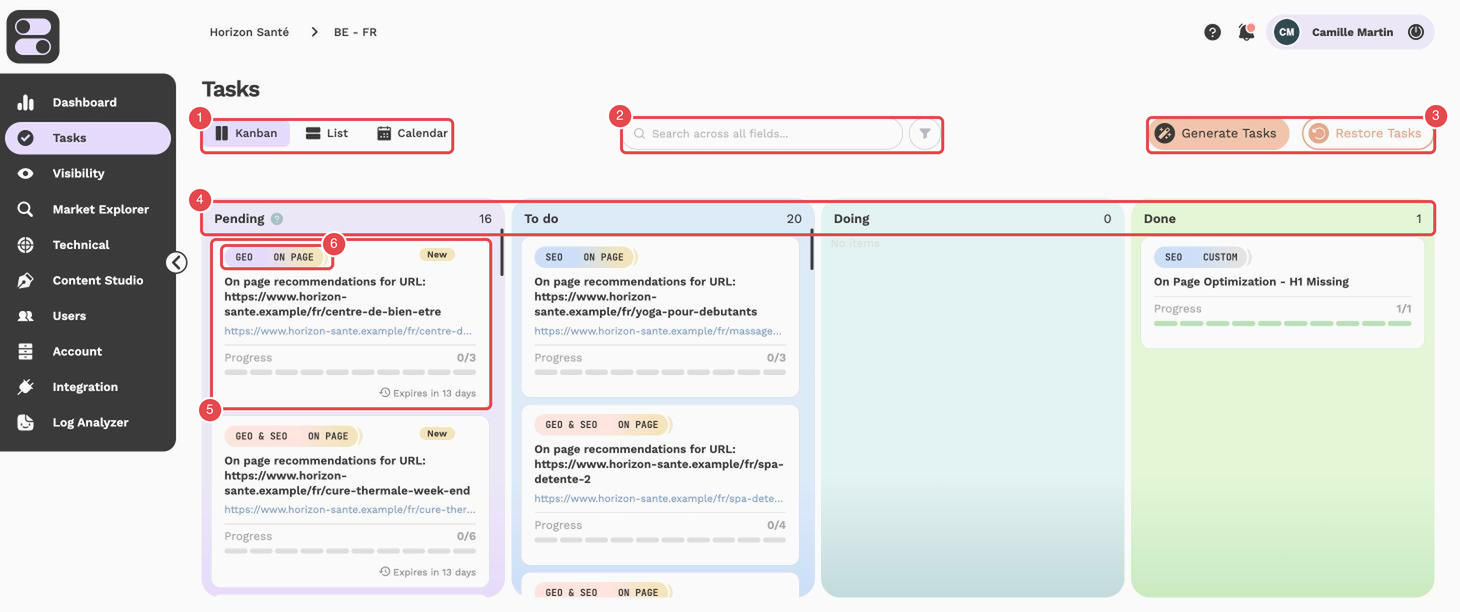
What the numbers show:
- Kanban / List / Calendar — the three views of the page.
- Search and filter — search across all fields; the filter icon opens the filters.
- Generate Tasks and Restore Tasks — create new tasks, or bring deleted ones back.
- Columns — Pending, To do, Doing and Done, each with its number of cards.
- Task card — title, URL, progress (sub-tasks done out of the total) and the countdown before it expires.
- Tags and New badge — the channel and type of the task (SEO, GEO, On Page, Custom…), and the New badge on recently updated cards.
To learn where recommendations come from, see How recommendations are generated.
Views
Switch between three views with the tabs at the top of the page: Kanban, List and Calendar.
Kanban
The Kanban sorts cards into four columns. Each column header shows its number of cards.
| Column | Use it for |
|---|---|
| Pending | New recommendations waiting for your decision. |
| To do | Recommendations you have accepted and plan to work on. |
| Doing | Work in progress. |
| Done | Completed work. |
Drag a card to another column to change its stage, or within a column to reorder it.
[!WARNING] Cards in Pending are temporary: they are deleted after 15 days if you do not move them to another column. A countdown on the card (Expires in 5 days, Expires today) turns red when 5 days or less are left.
Each card shows:
- Tags — the channel (SEO, GEO, GEO & SEO or UX) and the type (New Content, On Page, Technical, Off Page, Review or Custom).
- Title — the action to take.
- Progress bar — how many sub-tasks are done or abandoned out of the total.
- Due date, assignees, and the page URL when the card concerns a single page.
- A New badge if the card was updated in the last 3 days.
Hover a card to see its keywords, labels and prompts.
List
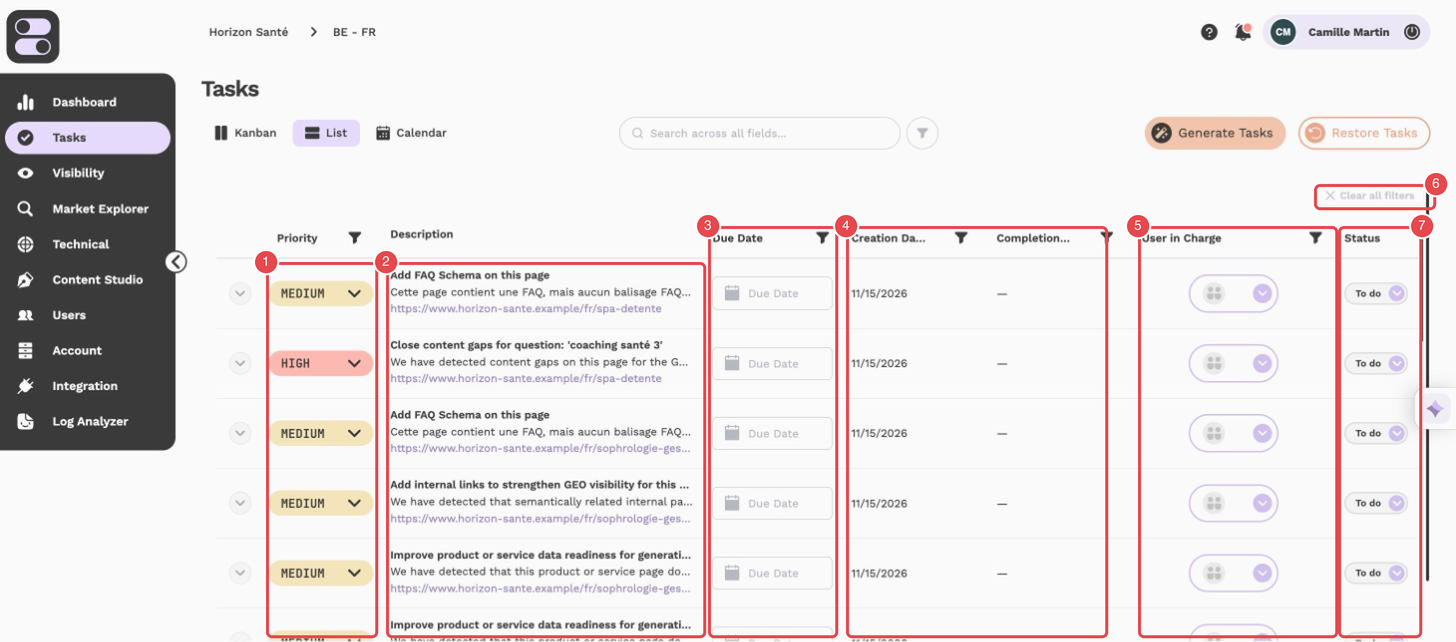
What the numbers show:
- Priority — the level of the sub-task (Low, Medium or High).
- Description — the title, a summary and the URL of the sub-task.
- Due Date — the deadline of the sub-task.
- Creation Date and Completion date — when the sub-task was created and completed.
- User in Charge — the person responsible.
- Clear all filters — removes the filters applied to the columns.
- Status — the status of the sub-task: To do, On hold, Done, Detected or Abandoned.
The List shows every sub-task as a row, which is handy for planning and follow-up:
| Column | Description |
|---|---|
| Priority | Low, Medium or High. |
| Description | What needs to be done. |
| Due Date | The deadline. Click to set or change it. |
| Creation Date | When the sub-task was created. |
| Completion date | When the sub-task was completed (Done or Detected). |
| User in Charge | The person responsible. Click to assign someone. |
| Status | The sub-task status: To do, On hold, Done, Detected or Abandoned (see below). |
| Comment | Number of comments. Click to open the thread. |
| Settings | Edit or delete the sub-task. |
The list shows 20 rows per page by default (20, 50 or 100).
Calendar
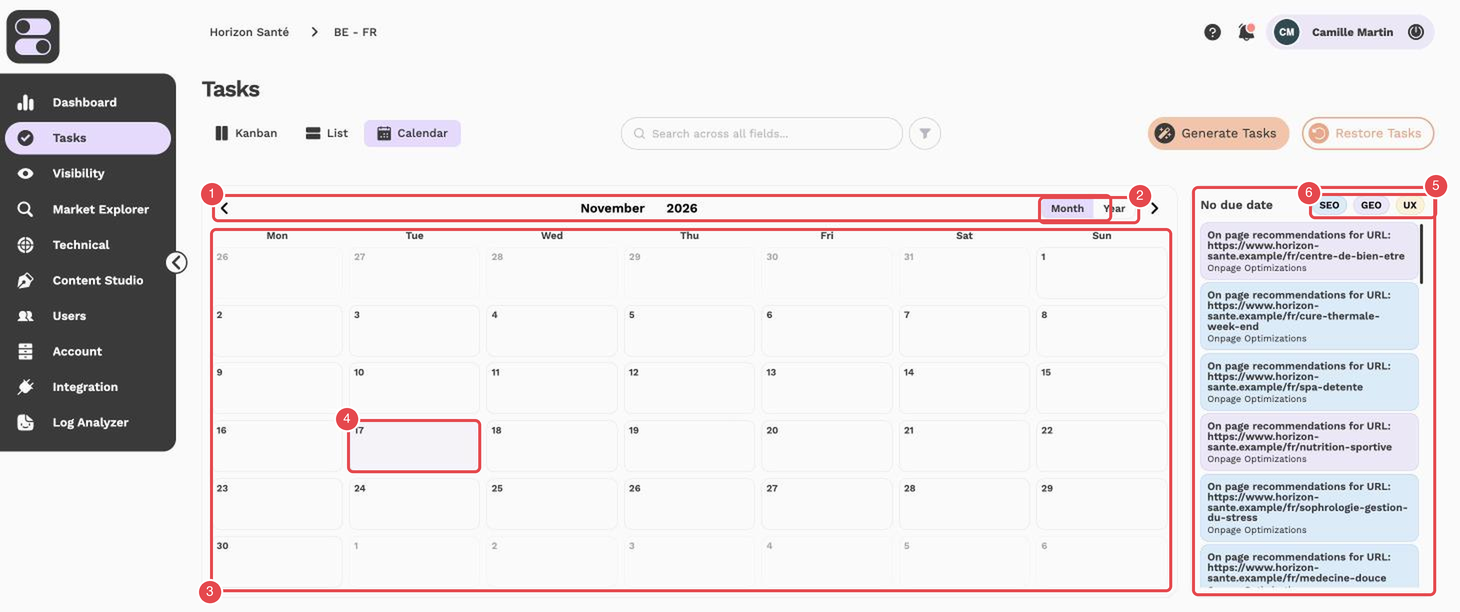
What the numbers show:
- Month navigation — the arrows move to the previous or next month.
- Month / Year — switch between the monthly and the yearly calendar.
- Calendar grid — tasks with a due date appear on their day.
- Current day — highlighted in the grid.
- No due date panel — the tasks to schedule; drag them onto the calendar.
- SEO, GEO and UX filters — limit the calendar to one channel.
The Calendar places cards on their due date. Switch between Month and Year, and use the arrows to move through time.
- Drag a card onto a day to set its due date.
- Cards without a deadline are listed in the No due date panel; drop a card there to remove its date.
- Use the SEO, GEO and UX buttons to filter the calendar.
Searching and filtering
Use the search bar to find a task by any word. The filter icon next to it lets you combine filters such as Status, Task Type, Labels, Assigned Users, Keyword, Page URLs, Has comment, Creation Date and Deadline.
Generating tasks
Click Generate Tasks to ask Semactic for new recommendations. In AUTO mode:
- Choose the Targeted sources: a Specific Target (a URL, keyword or prompt), one or more Labels, or Domain (site-wide recommendations that need no URL, keyword or prompt).
- Pick the Recommendation types you want.
- Optionally set a Due date and who the tasks are Assigned to.
- Start the generation. You can keep working: a notification tells you when it is finished and how many tasks were created, updated or skipped.
[!NOTE] One run can create up to 20 generations. Some recommendation types require a higher plan, and generation is not available once a free trial has expired.
Creating your own tasks
To add a task that Semactic did not suggest, open Generate Tasks and choose MANUAL:
- Select recommendation types, or turn on Custom recommendation and enter a title and a description for each task.
- For a custom recommendation, fill in the Title and Description of the custom card: both are required, and the recommendations you create together are grouped in that new card.
- Add a URL, keyword or prompt, an assignee and a due date if needed.
- Click Create.
Add a sub-task to an existing card
A card's detail has no button to add a sub-task: its table only lets you edit, delete, assign, schedule and comment on existing sub-tasks. To add one, use Generate Tasks > MANUAL:
- Recommendation types: the sub-task automatically joins the card that already exists for that recommendation type and target (keyword or URL). If no card matches, a card is created. A sub-task that already exists is skipped.
- Custom recommendation: it is always placed in a new card. Typing the title of an existing card does not attach it there: it creates a second card with the same name.
Task detail
In the List view, the arrow at the start of a row expands the sub-task to show its context and action plan: the keyword, question and URL concerned, then the recommendation steps and code examples. The arrow only appears on rows that have something to show. Clicking a row does not open a detail window: only the arrow expands it.
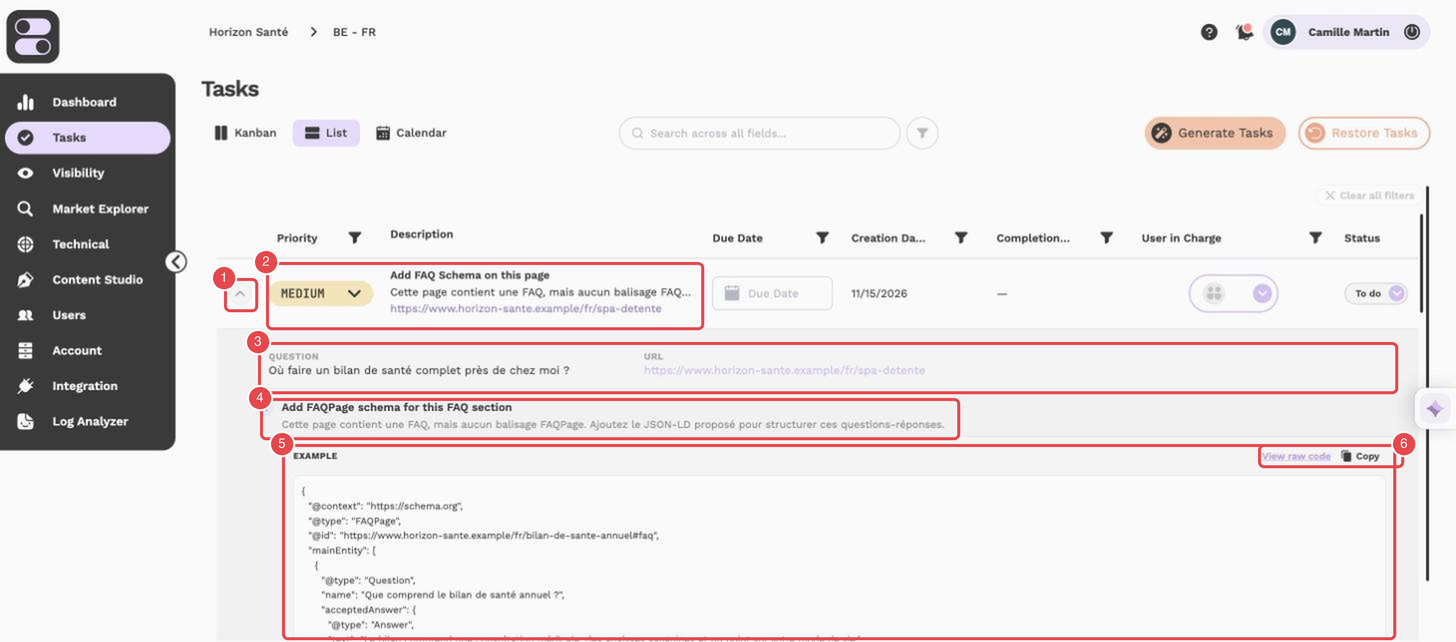
What the numbers show:
- Arrow — expands or collapses the row.
- Task row — priority, description, due date and the other columns of the sub-task.
- Question and URL — the question or page the sub-task is about.
- Recommendation step — its title and explanation.
- Example — a code example to copy.
- View raw code and Copy — display the raw code, or copy it.
Click a card in the Kanban view to open its detail window. Depending on the task type, you will find:
- the explanation of the recommendation and its due date;
- context such as keyword position, health score or domain authority charts, focus and secondary keywords, related prompts and a content brief;
- for content tasks, suggested Title and Meta description with a length check;
- AI examples and step-by-step guides for the fix;
- for content tasks, a Content Studio section to create or open the related article (see Content Studio);
- the sub-task table, with priority, status, assignee, due date and comments.
Changes are saved automatically as you edit each field.
Sub-task statuses
| Status | Meaning |
|---|---|
| To do | Not started yet. |
| On hold | Paused. |
| Done | Completed. For a new content task, you are asked for the URL of the new page. |
| Abandoned | You decided not to do it. |
| Detected | Semactic detected that the fix has been made. It cannot be set by hand. |
Open Advanced Options for bulk actions: Assign all to, Mark all as done, Mark all as undone and Export (CSV).
Comments
Comment on a sub-task to discuss it with your team. You can choose who is notified and attach files up to 1 MB.
Deleting and restoring tasks
Delete a card with the × on the card, or a sub-task from its Settings menu. Deleted tasks can be brought back:
- Click Restore Tasks.
- Search for and select the tasks to bring back.
- Click Restore tasks.
[!TIP] If Trello is connected, you can link each Kanban column to a Trello list: cards you move are synced with Trello. See Integrations.