docs.semactic › Semactic Features
Setting up a market
A market is a website tracked in a given country and language, for example mybrand.com in France (French) or in the United States (English). Each market has its own keywords, prompts, competitors, crawl and tasks. This page explains the guided setup you go through when you create your account, and how to add markets afterwards.
The guided setup
When you sign up and have no project yet, Semactic guides you through six steps. Our agents analyse your website and prepare most of the configuration for you; you review and adjust it.
| Step | What you do |
|---|---|
| Type | Say whether you are a brand or an agency, and choose what to track: SEO (keywords and Google rankings), GEO (prompts and AI visibility) or SEO + GEO. |
| Website | Enter your website URL and click Analyze website. Semactic suggests a brand name, a description and your main competitors; check the Country and Language, and add or remove competitors. |
| Topic | Select between 3 and 5 topics you want to be visible for. They are used to generate keywords and prompts. |
| Review | Keep the keywords and prompts you want to monitor: between 24 and 50 keywords (up to 10 per topic) and between 15 and 25 prompts (up to 8 per topic). You can add your own and add more later. |
| Summary | Semactic collects the data and builds your first SEO and GEO report. Open it with View my SEO report and View my GEO report, or download it with Download PDF. |
| Plan Choice | Choose a plan, Monthly or Annually (10% off), with optional add-ons. Start with a 7-day free trial with Start free trial, or click Subscribe. |
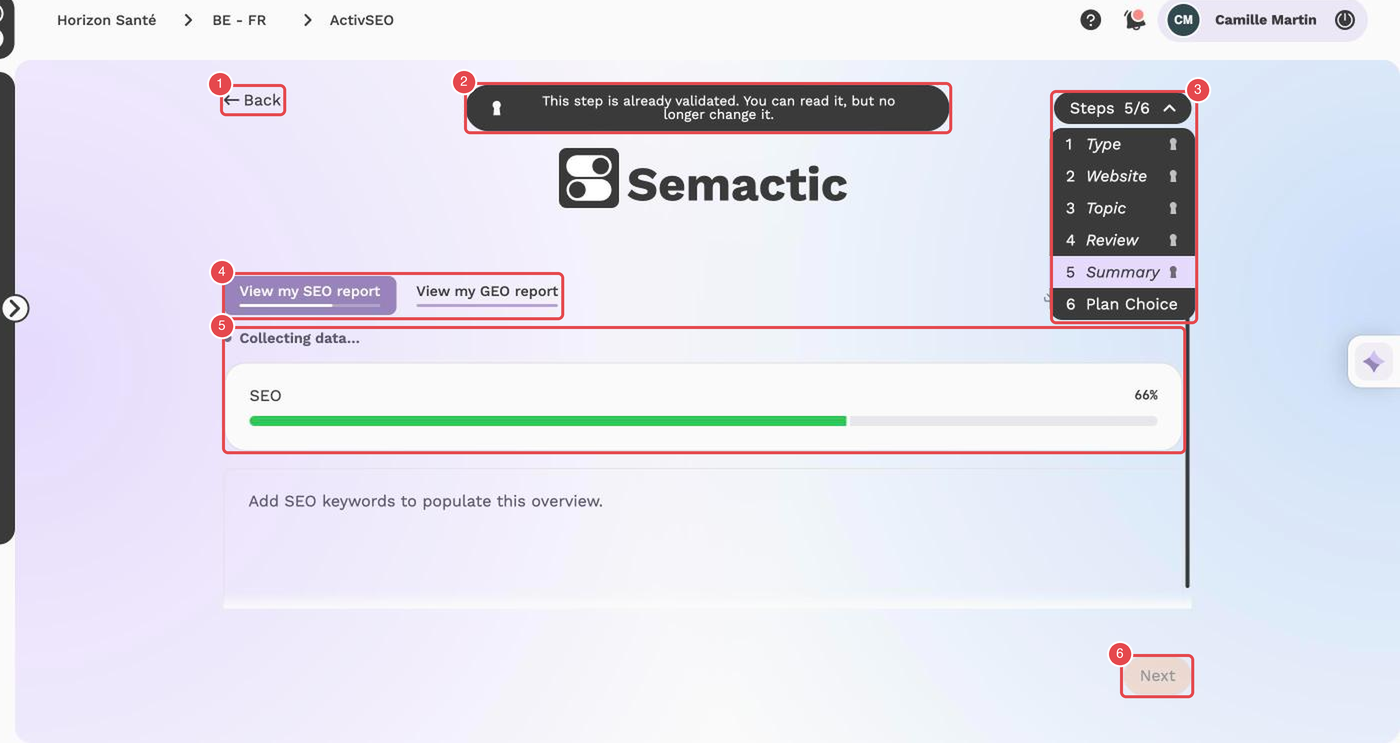
What the numbers show (here on the Summary step of a project whose setup is already validated):
- Back — goes back to the previous screen.
- Read-only banner — This step is already validated. You can read it, but no longer change it. A validated step stays readable but can no longer be changed.
- Steps menu — Steps 5/6: Type, Website, Topic, Review, Summary and Plan Choice. A padlock marks the validated steps.
- Report tabs — View my SEO report and View my GEO report.
- Data collection — Collecting data… and the progress bar of the report.
- Next — moves on to the next step.
[!WARNING] Only one report can be generated during setup. Before moving on to the Summary, Semactic asks you to confirm: make sure your website, country, language and selections are correct.
[!TIP] Take your time on the Topic step: well-chosen topics lead to more relevant keyword and prompt suggestions, and therefore to useful tracking from day one.
[!NOTE] In France, AI Mode and AI Overview are not available: the GEO report covers ChatGPT only.
After the setup
- Semactic runs an initial crawl of your website to build the technical audit.
- Keyword positions and AI engine answers are collected for your market.
- The first recommendations are generated in Tasks from the crawl and from your keyword and prompt gaps.
Data usually appears within 24 to 48 hours. On large sites, the full technical data can take longer.
Add a market or a project later
Markets and projects are managed from the Account page by Admin users (see Account).
Open the project
On the Account page, expand the project card and click + next to its markets.
Describe the market
In Create market, choose the Country, an optional City and the Language, then the Reco language of the recommendations. Check the Specific URL (where the crawl starts) and the Conditional URL (only URLs containing this value are crawled).
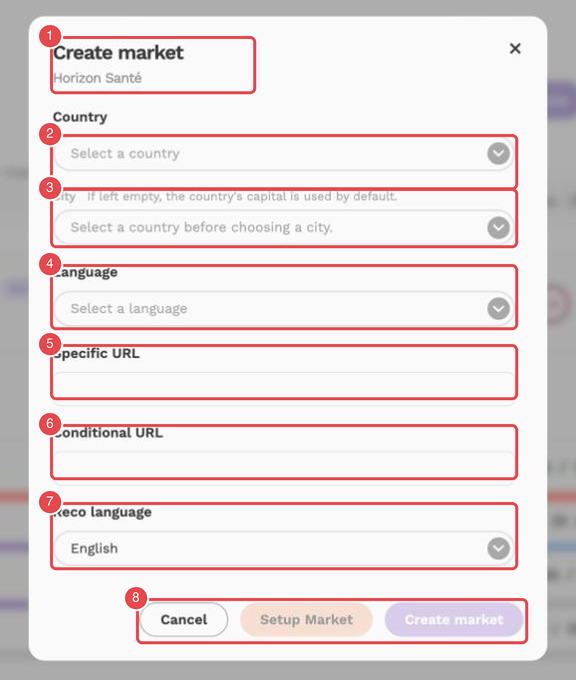
What the numbers show:
- Create market — the title and, below it, the project the market is added to.
- Country — the country of the market.
- City — optional; if left empty, the capital of the country is used.
- Language — the language of the market.
- Specific URL — where the crawl starts.
- Conditional URL — only URLs containing this value are crawled.
- Reco language — the language of the recommendations.
- Cancel, Setup Market and Create market — close the window, go through the guided setup for this market, or create the market.
Create the market
Click Create market, or Setup Market to go through the guided setup (topics, keywords, prompts and report) for this market.
To track a new website, create a new project with + Create at the top of the Account page.
[!WARNING] Each active market counts towards the market limit of the project's plan: you may need to change the plan or add a market add-on first (see Billing & subscription). Pausing a market stops its data collection; reactivating it commits it for at least 30 days.