docs.semactic › Semactic Features
Visibility
The Visibility page is where you follow, day after day, the keywords you track in Google and the prompts you track in AI engines. It is also where you manage those lists: add, label, delete and restore keywords and prompts.
[!INFO] On this page: SEO and GEO views, period and filters, SEO visibility (KPIs, chart, keywords and URLs tables, keyword detail), GEO visibility (KPIs, chart, prompts table, prompt detail), managing keywords, prompts and labels.
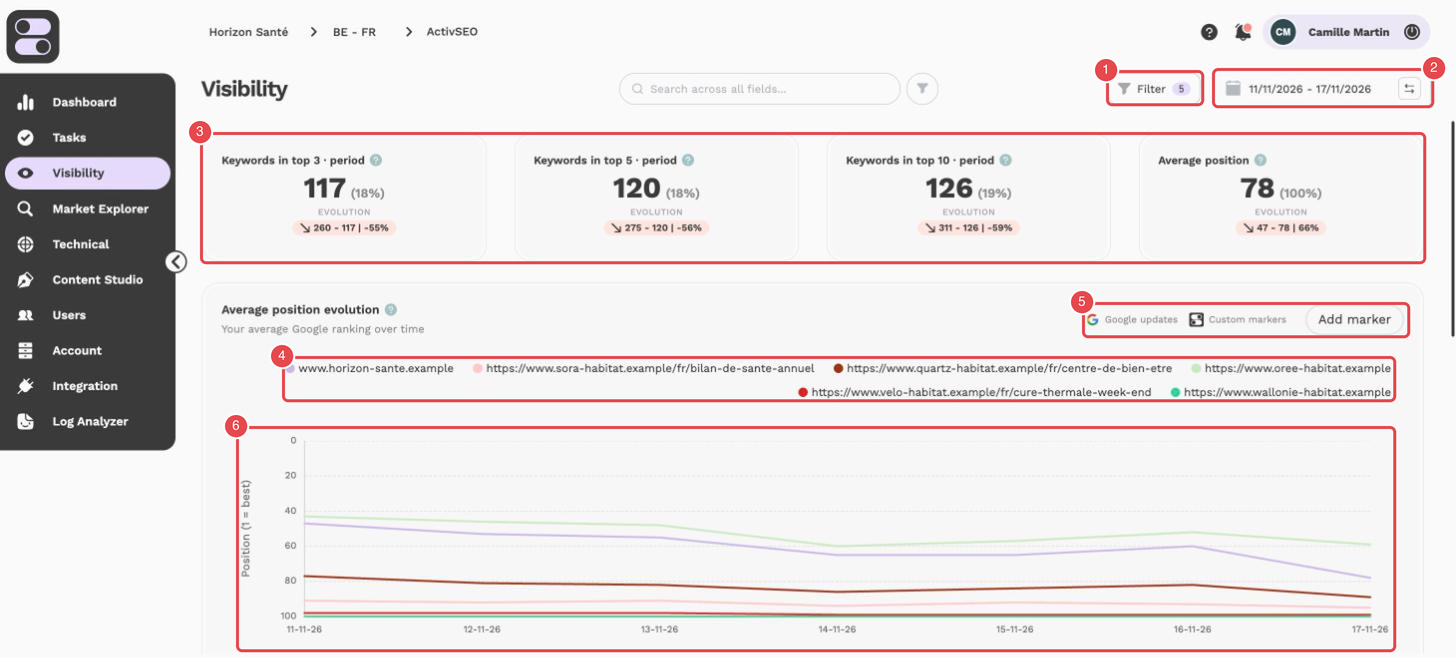
What the numbers show (ActivSEO view):
- Filter — the button opens the filter panel, where you choose the competitors shown; its badge shows the number of competitors applied.
- Date picker — the period displayed on the page.
- KPI cards — keywords in the top 3, top 5 and top 10 over the period, and the average position, each with an Evolution badge.
- Legend — your site and the competitors; click a name to show or hide its curve.
- Google updates, Custom markers and Add marker — the markers shown on the chart, and the button to add your own.
- Average position evolution chart — the axis is inverted: position 1 (best) is at the top.
SEO and GEO views
The page has two views. Switch between them with the ActivSEO / ActivGEO selector in the top bar:
| View | What it tracks |
|---|---|
| ActivSEO | Your keyword positions in Google, compared with your competitors. |
| ActivGEO | Your presence in AI answers for the prompts you track. Choose the AI engine (ChatGPT, Ai Mode, AI Overview, Perplexity, Claude) in the selector next to it. |
Period, comparison and filters
The bar under the selectors contains three controls that apply to the whole page:
- Search field (funnel icon inside the field) — narrow the page to some keywords, labels or URLs (SEO), or to some questions, labels or keywords (GEO).
- Filter button — choose which competitors appear in the charts and tables. Its badge shows the number of competitors applied. In the panel, the Competitors section lists them grouped by competitor label, with a search field, Use default and Clear, then Reset and Apply. Without an explicit choice, the first 5 competitors are shown.
- Date picker — pick a period with the calendar or a shortcut (e.g. Last 30 days, Last 3 months), then choose what to Compare to: Previous period, Previous year or Custom.
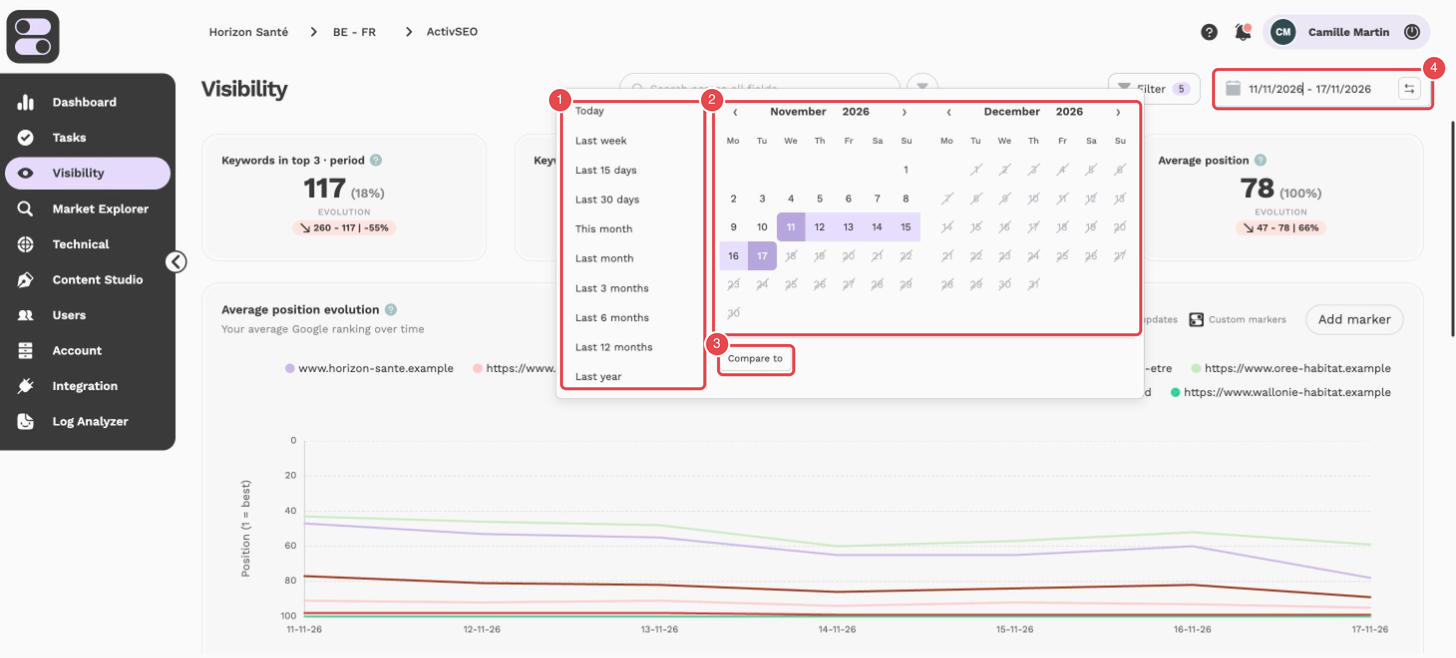
What the numbers show:
- Shortcuts — Today, Last week, Last 15 days, Last 30 days, This month, Last month, Last 3 months, Last 6 months, Last 12 months and Last year.
- Calendars — pick the period on the calendar; future days are disabled.
- Compare to — choose the comparison period.
- Dates field — the period currently selected; click it to open the picker.
[!NOTE] Data is only available from the date tracking started for the market. In GEO, only dates that have data can be selected.
SEO visibility
KPI cards
| Card | Description |
|---|---|
| Keywords in top 3 · period | Number and share of tracked keywords whose average position over the period is between 1 and 3. |
| Keywords in top 5 · period | Same for positions 1–5. |
| Keywords in top 10 · period | Same for positions 1–10. This figure is usually higher than the Dashboard's, which only looks at the last day collected. |
| Average position | Your average position across tracked keywords. Lower is better. |
When the period covers more than one day, each card shows an Evolution badge against the comparison period. Click a top 3, 5 or 10 card to see which keywords entered or left that group. Hover the ? icon for the definition.
[!TIP] By default, keywords where you are not ranked count in the average position (as position 100). Untick Include unranked keywords in average position in the search field's filter panel to leave them out.
Average position evolution chart
The chart shows your average position over time, next to the competitors selected with the Filter button. Icons on the chart show Google updates and your Custom markers.
- Click Add marker.
- Choose the market(s), the date and write a comment (e.g. "Site migration").
- Save: the marker appears on the chart. Remove it later with the ✕ on its popup.
[!TIP] Markers make it much easier to understand what caused a ranking change when you look back weeks later.
Google rankings table
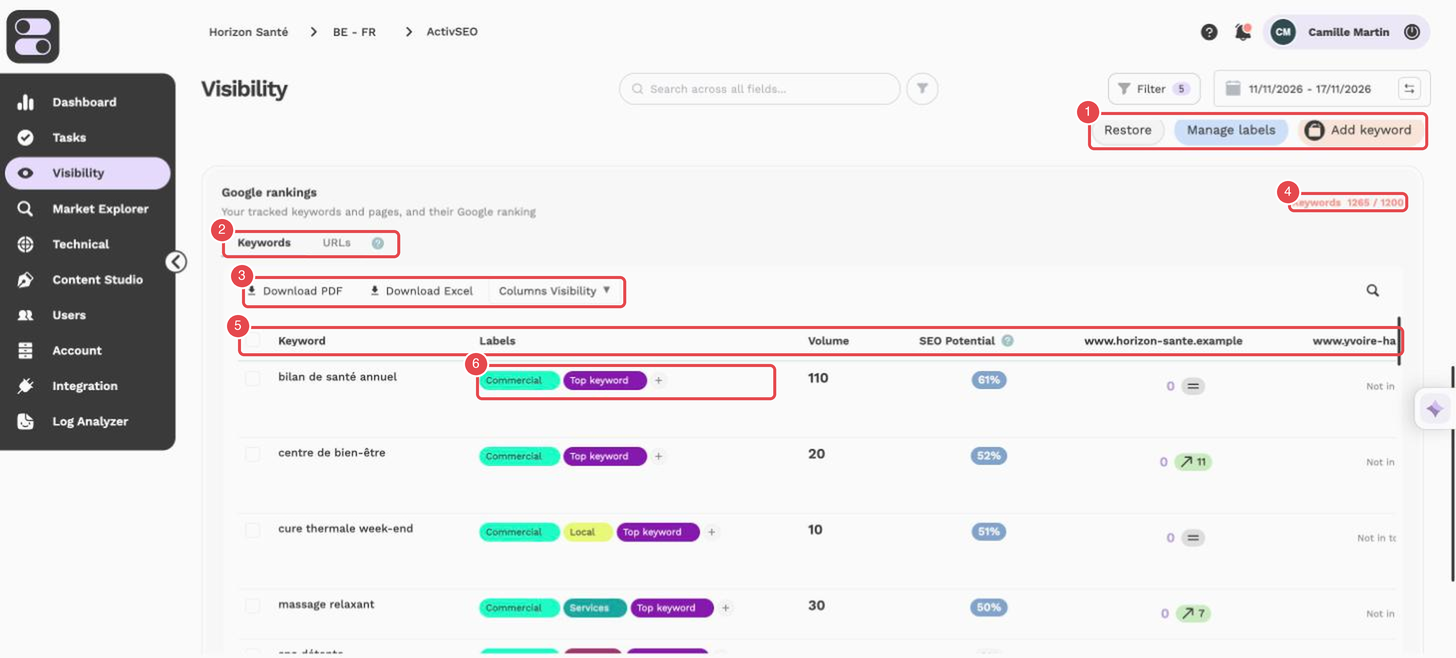
What the numbers show:
- Restore, Manage labels and Add keyword — the buttons above the table.
- Keywords / URLs tabs — switch between the keyword list and the ranking pages.
- Download PDF, Download Excel and Columns Visibility — export the table and choose the columns displayed.
- Keywords counter — keywords used out of the limit of your plan.
- Column headers — Keyword, Labels, Volume, SEO Potential, then one column per domain.
- Labels column — the labels assigned to each keyword.
The Google rankings table has two tabs: Keywords and URLs. A counter shows how many keywords you use out of your plan's limit.
The Keywords tab shows, for each keyword:
| Column | Description |
|---|---|
| Keyword | The tracked search query. Click it to open the keyword detail. |
| Labels | The labels assigned to the keyword. |
| Volume | Average monthly search volume. Click it to see the trend. |
| SEO Potential | Estimated value of working on this keyword, from 0 to 100. It combines volume, SEO competition, ad competition and the number of results (see Understanding SEO Potential). |
| Your site and competitors | One column per domain with its position and its change over the period. |
| Avg. words | The average number of words of the pages ranking in the Google top 10 for this keyword (see Understanding Avg. words). |
| More columns | Related questions, SERP Features, Search results, Creation date, URL. Competition, Competition SEO and Focus URL can be shown with the column picker. |
How to read a position:
| Display | Meaning |
|---|---|
| Number | Your position in Google. Positions up to 20 link to the ranking page. |
| 0 | You appear in a SERP feature above the results, such as an AI Overview. |
| Mention | Your brand is named without a link. |
| Not in top 100 / Unranked | You are not in the first 20 results collected that day: Semactic collects the first two pages of Google and nothing beyond, despite the « top 100 » label. |
The URLs tab lists your ranking pages with the number of keywords, best position and volume of each.
Both tabs offer search, Download PDF and Download Excel. Select rows to Delete keywords or Assign labels in bulk.
Understanding SEO Potential
SEO Potential is a whole-number score from 0 to 100 that estimates how worthwhile a keyword is to work on. Use it to compare your keywords with each other, not as a traffic forecast.
It combines four elements specific to the keyword. Each first receives a score from 0 to 10; the potential is the weighted average of these four scores, multiplied by 10 and rounded.
| Element | Weight | Score from 0 to 10 |
|---|---|---|
| Competition SEO (0 to 10) | 50% | Rates how well the top 11 Google pages are optimized for the keyword: presence in the URL, title, H1s and H2s. The more optimized they are, the harder they are to beat: the score is 10 minus the SEO competition. |
| Search volume | 30% | In steps: under 10 → 0, under 50 → 1, under 100 → 2, under 250 → 3, under 500 → 5, under 1,000 → 6, under 5,000 → 7, under 10,000 → 8, then the score keeps rising in bands up to 10. Zero volume gives a potential of 0, whatever the other scores. |
| Competition (Google Ads, 0 to 1) | 15% | Inverted, in bands of 0.1: under 0.1 → 10, down to 0 from 0.95. |
| Search results | 5% | Inverted: under 100,000 results → 10, down to 0 from 200 million. |
All four are columns of the table (Competition and Competition SEO through the column picker). Your position and your competitors' are not part of the calculation; your position is used separately, to rank recommendations by priority.
- Display thresholds: 70 and above is considered high; 40 to 69 medium; below 40 low. The column can be sorted and filtered from 0 to 100.
- When it is calculated: when the keyword is created (market setup or starting an analysis), then caught up automatically within minutes if it is missing. It is then recalculated when the keyword's volume is refreshed. A keyword shows "…" until its potential has been calculated.
[!NOTE] This is a decision aid. Weigh it against your audience, your content and the keyword's search intent.
Understanding Avg. words
The Avg. words column shows the average number of words of the pages ranking in the Google top 10 for the keyword. It is rounded to a whole number and gives an idea of the content length needed to rank.
- How to use it: compare it with the length of your page on this keyword. A page much shorter than the top 10 average often needs fleshing out; a page that is already longer gains nothing by getting longer.
- A benchmark, not a target: length is not a ranking factor in itself. What matters is covering the search intent better than the pages ahead of you.
- Where to find it: in the Google rankings table (Keywords tab), in the keyword detail, and in content tasks (the "Avg. top 10 website content Size" field), where it acts as a length target.
- "-" in the column: the value is not available yet for this keyword, for example right after it was added.
Keyword detail
Click a keyword to open its detail. You will find:
- its volume, SEO potential, position, competition and labels, and whether an AI Overview is shown for it;
- the Position evolution chart and the search volume trend;
- People Also Ask questions and the SERP features present on the results page;
- the pages of your site that rank for it and a snapshot of the SERP results;
- the tasks already created for this keyword, and a Generate recommendations button.
GEO visibility
KPI cards
| Card | Description |
|---|---|
| Share of voice | Your share of brand mentions in AI answers for your tracked prompts (0–100 %). |
| Number of mentions | Number of prompts whose answer mentions your brand at least once. |
| Number of sources | How many times your site is cited as a source in AI answers. |
| Position in AI | Your average rank in the answers where you appear (1 = best). |
AI score evolution chart
The AI score evolution chart shows your AI visibility score and your competitors' over time. Next to it, Brands Mentioned lists the brands found in the answers with their mentions and AI Visibility Score.
Tracked prompts table
The Tracked prompts table lists your prompts (questions asked to AI engines). A counter shows how many prompts you use out of your plan's limit.
| Column | Description |
|---|---|
| Question | The prompt. Click it to open the prompt detail. |
| Labels | The labels assigned to the prompt. |
| Volume | Estimated search demand for the topic. |
| Your brand and competitors | The rank of each brand in the answer. |
| More columns | Brands Mentioned, Sources, AI Search, Products, URLs crawled by AI, AI Model. With the AI Overview engine, AI Overview Triggered shows whether Google displayed one. |
Expand a row to see its linked keywords. Select rows to Delete prompts, Assign labels or Assign keywords.
Prompt detail
Click a prompt to open its detail for the selected AI engine:
- the AI response, as a screenshot or as text (Show screenshot / Show transcription);
- the brands mentioned and the Sources cited, marked You or Competitor;
- Position over time for each brand;
- linked keywords, the pages of your site that rank for the prompt, the tasks already created and a Generate recommendations button.
[!TIP] To see the answer from another engine, change the AI engine in the top bar.
Managing keywords, prompts and labels
Three buttons above the table let you manage your lists: Restore, Manage labels and Add keyword (SEO) or Add prompts (GEO).
Adding keywords or prompts
- Click Add keyword or Add prompts.
- Choose a tab: Manual (one per line), Bulk Import (an Excel file with the keyword or prompt in column A and the label in column B — download the template from the window) or Import Keywords / Import Prompts (copy them from another project or market).
- Assign at least one label, then confirm.
[!NOTE] The number of keywords and prompts depends on your plan. A warning appears at 80 % of the limit; at 100 % the add button is locked until you upgrade or delete some items.
Labels
Manage labels lets you create, rename, colour and delete labels. Each label can also carry a description and attributes used by the GEO analysis: user intent, persona, product/service, brand, product brand and key benefit. You can also Generate Labels with AI or Import labels from other markets.
Restoring deleted items
Deleted keywords, prompts and labels can be restored. Click Restore, choose the tab (labels, keywords or prompts), select the items and restore them.
[!WARNING] Deleting prompts permanently erases their history (positions, mentions, sources and AI answers): export it first if you need it. A restored prompt starts again from zero.
[!NOTE] Adding, deleting, labelling and restoring keywords requires the Digital Specialist role or higher. See Users.