docs.semactic › Semactic Features
Technical
The Technical page is your website's technical SEO audit. Semactic crawls your site, ranks the problems that can hold back your rankings and your visibility in AI answers, and tells you where to start. Open it from Technical in the left sidebar.
[!INFO] On this page: the four tabs, the health score, reading an issue's details, ignoring an issue or marking it as fixed, robots.txt, sitemap and AI crawlers, crawled pages, the PDF report.
The top bar shows Technical Health, the date of the Last crawl and the PDF report button. The four tabs are Overview, Issues, Pages and Robots, sitemap and AI.
[!NOTE] If the market has never been crawled, a No crawl for this market yet banner says the issues will appear after the first crawl. If the last crawl is too old (more than 30 days), a Last crawl on… banner says the issues are not shown until a new crawl runs.
Overview
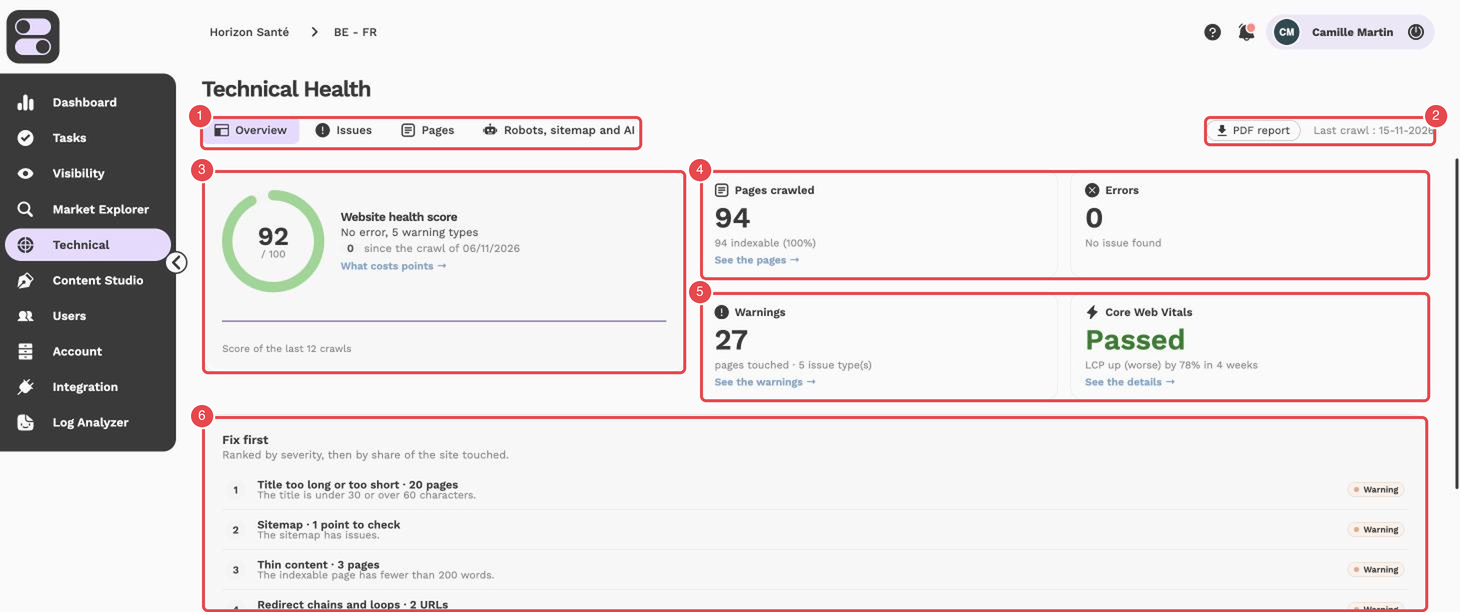
What the numbers show:
- Tabs — Overview, Issues, Pages and Robots, sitemap and AI.
- PDF report and Last crawl — the button to export the report, and the date of the last crawl.
- Website health score — the score out of 100.
- Pages crawled and Errors — the number of pages found by the crawl, and the errors detected.
- Warnings and Core Web Vitals — the warnings (pages touched and number of issue types) and the Core Web Vitals result.
- Fix first — the issues to deal with first, ranked by severity and then by the share of the site they affect.
| Block | Description |
|---|---|
| Website health score | A score out of 100: green from 90, yellow from 50 to 89, red below 50. The block shows the crawl date, how the score changed over the last crawls and how many types of errors to fix first. What costs points opens the Issues tab. |
| Pages crawled | The number of pages found by the crawl, including how many are indexable. See the pages opens the Pages tab. |
| Core Web Vitals | Passed, failed or no data, measured on real Chrome visitors over the last 28 days. Without enough Chrome visits, the block says No data. |
| Errors and Warnings | The pages touched and the number of issue types, with a link to see them. |
| Fix first | Issues ranked by severity, then by the share of the site they affect. |
| Authority and backlinks | The last block of the tab, under Fix first. It shows your current authority, or No authority measure yet. when none is available for the market. The See button opens a window with the authority curve and two tabs, To your site and To your competitors: the domains that link to you, and those that link to your competitors but not to you (links worth getting). |
When an issue is flagged, the overview also shows the change since the previous crawl.
Issues
The Issues tab lists every type of issue found by the last crawl. Use the search, the severity filter and the theme filter to browse them.
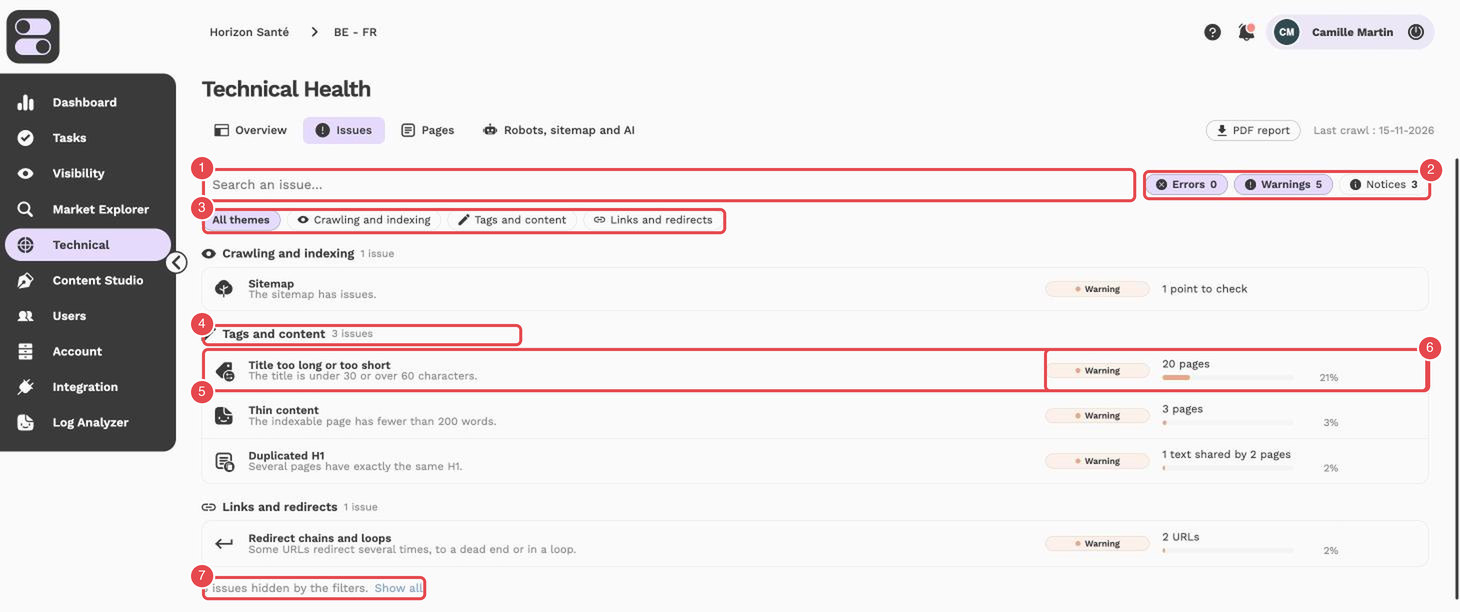
What the numbers show:
- Search an issue — type a word to find an issue.
- Errors / Warnings / Notices — counters that also work as severity filters. Errors and Warnings are selected by default; Notices is not.
- Theme filters — All themes, then one filter per theme.
- Group of issues — the theme and its number of issues.
- Issue row — the title of the issue and a short explanation.
- Severity and impact — the severity badge, the number of pages touched and their share of the site.
- Issues hidden by the filters — a note tells how many issues the filters hide; Show all removes the filters.
Each issue has a severity:
| Severity | Meaning |
|---|---|
| Error | The page cannot be read or found: fix these first. |
| Warning | The page is read but badly understood, or it is slow. |
| Notice | Worth checking, often intended. |
Issues are grouped by theme: Crawling and indexing, Tags and content, Links and redirects, Performance and Structured data. The theme filters only list the themes that have at least one active issue. What concerns AI is in the Robots, sitemap and AI tab.
| Theme | Examples of issues |
|---|---|
| Crawling and indexing | Server errors (5xx), missing canonical, robots.txt, sitemap, noindex pages, hreflang (missing, to an error page, without return link, without self-reference, missing x-default, invalid language code) |
| Tags and content | Missing, duplicated or multiple title and H1, missing or duplicated meta description, title or description too long or too short, thin content |
| Links and redirects | Links to 404 pages, redirect chains and loops, URLs too deep, pages with no inbound link found |
| Performance | Slow pages, Core Web Vitals (real visitors) |
| Structured data | Missing structured data (schema.org) |
Backlinks (To your site, To your competitors) are not counted as issues: they are opportunities, found from the overview.
Reading an issue's details
Click an issue to open its window. It contains:
- Why it matters, How to fix and And for AI?: what the issue is and how to deal with it;
- the affected rows: pages, text shared by several pages, broken or redirected URLs (expand a row to see Linked from these pages), with search and Show more for long lists;
- the tasks already created in Tasks for this type of issue;
- Export as CSV to get the rows in a file.
For some issues, such as Redirect chains and loops, Add to tasks sends the fix to your task list. Each row shows the redirected URL, the final URL, the type (Loop, Broken, Chain or Redirect), the number of hops and the internal links involved.
Ignoring an issue or marking it as fixed
In an issue's window, Ignore this issue removes it from the totals and the priorities (Stop ignoring brings it back). Mark as fixed records that you dealt with it: the next crawl tells whether it is gone. If it is still there, it is flagged Still there. These decisions are shared with your team.
Robots, sitemap and AI
This tab checks that search engines and AI can read your site:
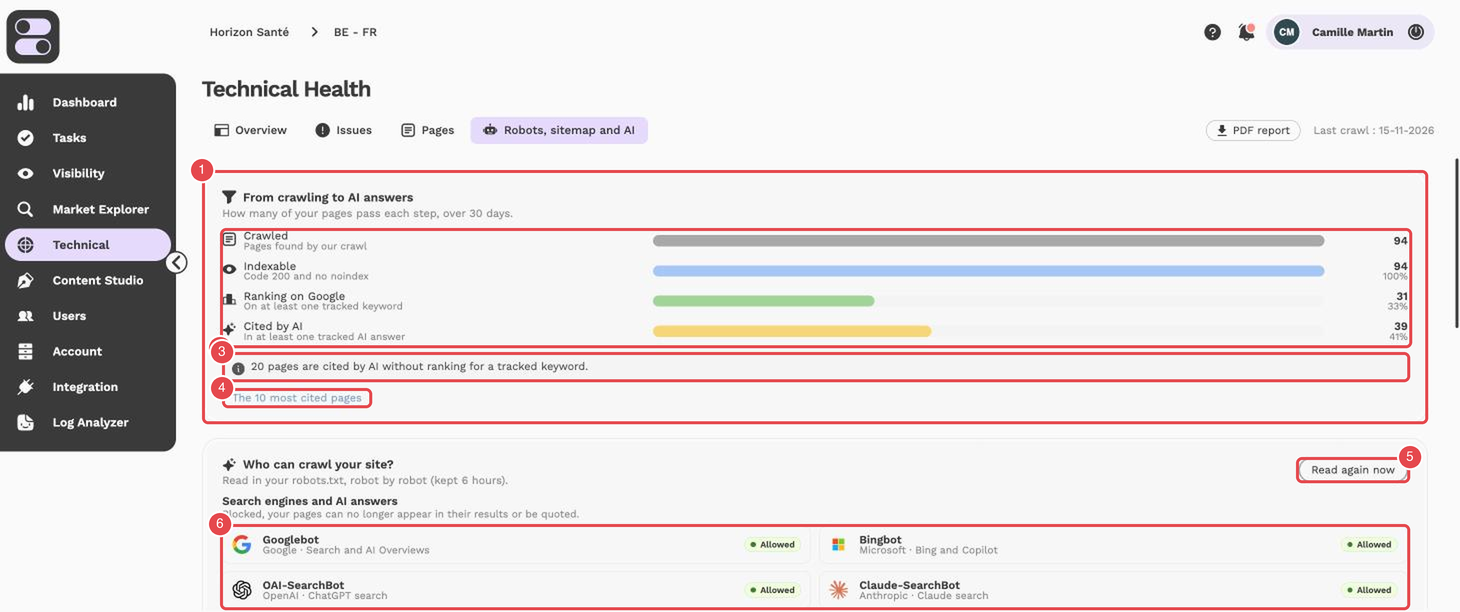
What the numbers show:
- From crawling to AI answers — how many of your pages pass each step, over 30 days.
- The four steps — Crawled, Indexable, Ranking on Google and Cited by AI.
- Cited without ranking — a note counts the pages cited by AI that do not rank for a tracked keyword.
- The 10 most cited pages — a link to the pages most cited by AI.
- Read again now — re-reads the robots.txt right away.
- Robot list — each robot (Googlebot, Bingbot, OAI-SearchBot, Claude-SearchBot…) with its Allowed or Blocked status.
- From crawling to AI answers shows, over 30 days, how many pages are Crawled, Indexable, Ranking on Google and Cited by AI.
- Who can crawl your site? reads your robots.txt robot by robot (kept for 6 hours): search engines and AI answers, assistants opening a page on request, model training. Blocking an AI search crawler keeps you out of its answers; blocking a training crawler does not remove you from answers.
- Readability by engines and AI flags a robots.txt with no sitemap, and whether you have an llms.txt file, an optional file that sums up your site for AI assistants.
- Sitemap compares what your sitemaps declare with what the crawl found: redirected or erroring URLs, noindex URLs, indexable pages missing from the sitemap, URLs never crawled.
- Read again now re-reads the robots.txt and the sitemaps right away, for example after a fix.
Pages
The Pages tab lists the crawled pages with their response code, word count, PageSpeed score, URL levels, inbound links, last crawl and issues.
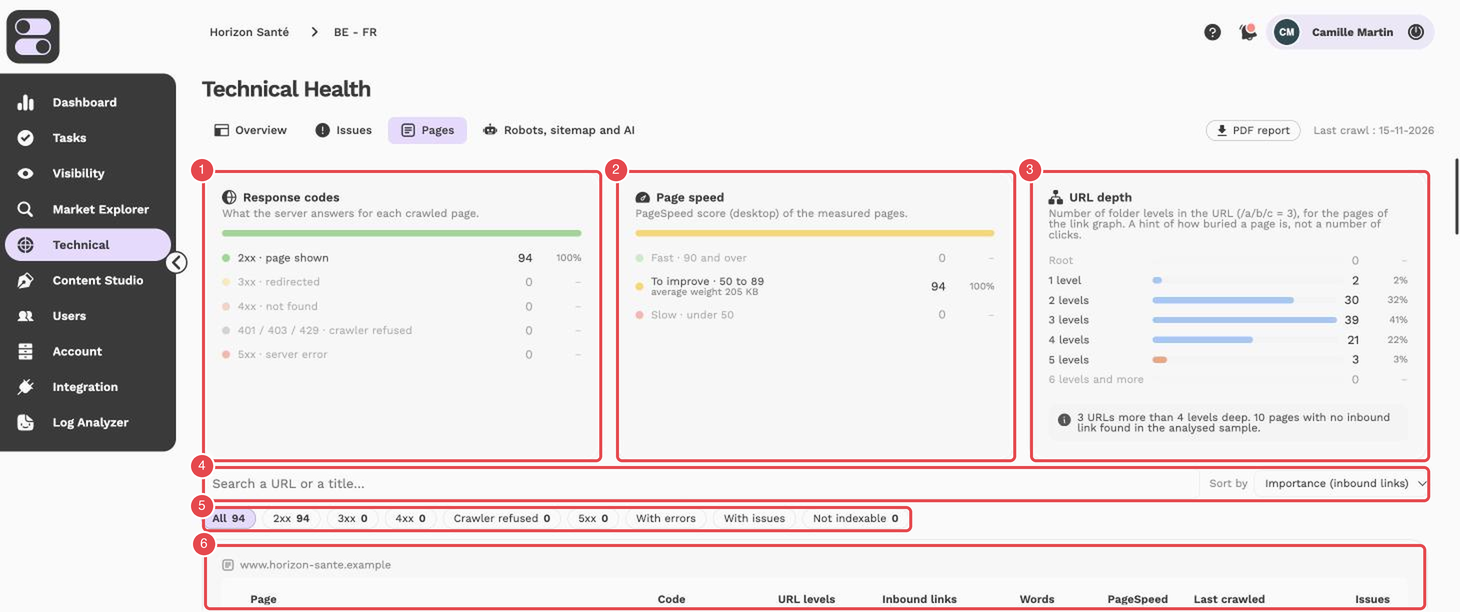
What the numbers show:
- Response codes — what the server answers for each page: 2xx, 3xx, 4xx, 5xx, crawler refused (401, 403, 429) or no answer.
- Page speed — the PageSpeed score (desktop) of the measured pages: fast (90 and over), to improve (50 to 89) or slow (under 50), with the average weight.
- URL depth — the number of folder levels in the URL (/a/b/c = 3). It hints at how buried a page is; it is not a click count.
- Search and Sort by — search a URL or a title, and sort the table.
- Quick filters — All, 2xx, 3xx, 4xx, Crawler refused, 5xx, With errors, With issues and Not indexable.
- Pages table — one row per crawled page.
- Search a URL or a title, filter by response code, With issues, With errors or Not indexable, and sort by importance (inbound links), number of issues, speed, word count or depth.
- Click a page to see its details: indexing, content, performance and links, and the issues affecting it (See the issue).
PDF report
PDF report, in the top bar, opens your browser's print dialog: choose Save as PDF to get a technical audit you can share.
[!TIP] Start with Fix first: errors first, then warnings. Tag issues (title, H1, meta description) are usually quick to fix and lift the score fast.
[!NOTE] The Technical page depends on your subscription. If it is not included, a lock screen is shown instead.