docs.semactic › Semactic Features
Billing & subscription
In Semactic, plans and add-ons belong to a project: each project has its own plan, with its own limits. Your billing details, payment method and invoices are shared at the level of your business account. Everything is managed from the Account page, which is available to Admin users and business admins.
Where to find billing
- Account page — the Billing block on the right summarises your subscriptions, payment method and billing details; each project card has Change plan and Manage add-ons. See Account.
- Billing information page — at app3.semactic.com/billing/my-billing, the same Billing block plus your Billing history.
The Billing block
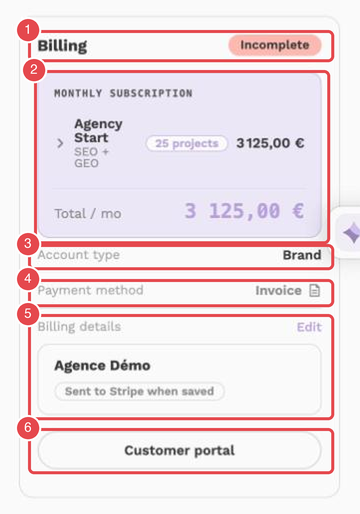
What the numbers show:
- Billing title and badge — the state of your billing; the badge reads Incomplete until the required billing details are filled in.
- Monthly subscription — the plan of the project and the total per month.
- Account type — Brand or Agency.
- Payment method — Invoice or Card; here the account pays by invoice.
- Billing details — the company details used on your invoices; click Edit to change them.
- Customer portal — opens the secure payment portal.
| Item | What it shows |
|---|---|
| Subscriptions | One line per plan with its monthly amount, grouped by plan. A project on trial shows Trial and the amount that will apply afterwards. Click a project to find it in the list. |
| Add-ons | The add-ons active on your projects. |
| Account type | Brand or Agency. |
| Payment method | Card or Invoice. With a card, use Change card to replace it. |
| Billing details | Company name, VAT number, billing contact and address, used on your invoices. Click Add or Edit to fill them in. |
| Customer portal | Opens the secure payment portal, where you can manage your card and download your invoices. |
[!WARNING] Complete your Billing details before subscribing to a plan: the badge at the top of the block shows Incomplete until the required information is filled in, and an upgrade cannot be completed without it.
Plan limits
Each plan includes an allowance for the following:
| Limit | What it covers |
|---|---|
| Keywords | Google keywords tracked, shared by all the active markets of the project. |
| Prompts | Questions asked to AI engines to measure your GEO visibility. |
| Markets | Country and language combinations you can track. |
| Page crawls | Pages of your site analysed by the technical crawl. |
| Tokens | Budget for AI features: content analysis, comparisons and recommendations. |
| Competitors | Competitors tracked per market. |
[!NOTE] Keyword and prompt allowances are pooled per project, not per market. If your project includes 1000 keywords and one market uses 650, the other markets share the remaining 350. Paused markets do not count.
On the Account page, the gauges under the markets of each expanded project card show how much each market uses. They appear for projects that have a plan.
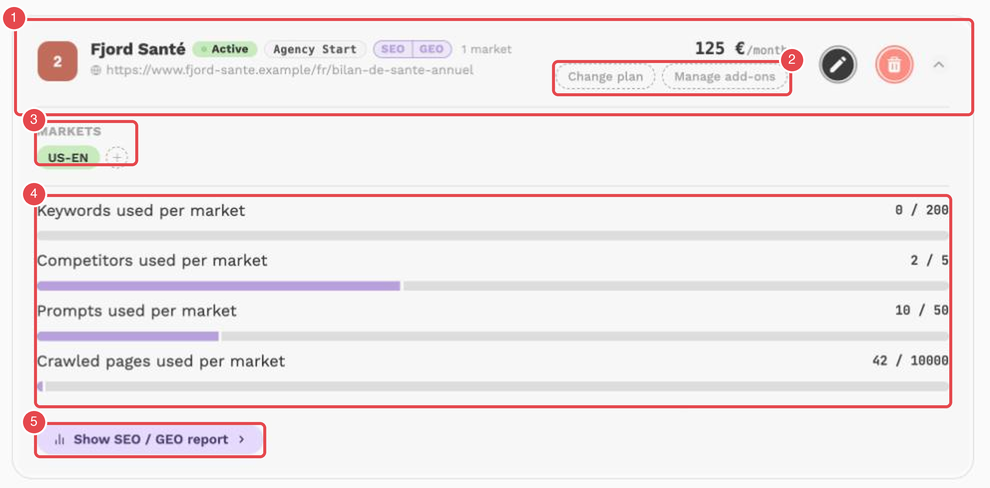
What the numbers show:
- Project header — the status, the plan, SEO and/or GEO, the number of markets, the domain and the monthly price.
- Change plan and Manage add-ons — change the plan of the project, or its add-ons (see below).
- Markets — one chip per market of the project (here US-EN) and the + to add a market.
- Usage gauges — Keywords used per market, Competitors used per market, Prompts used per market and Crawled pages used per market. Each coloured segment of a bar is one market, and the figure on the right is the total used out of the limit. For Competitors, the limit applies to each market, so the total is that limit multiplied by the number of markets. A badge such as + 1,000 or + 100 is the amount added by the project's add-ons. A bar turns red when the limit is exceeded.
- Show SEO / GEO report — opens the SEO and GEO report of a market of the project.
How the allowance is calculated
Your allowance is set per project: the plan's base allowance, plus the add-ons attached to the project. Most add-ons add a fixed amount for each unit you buy (for example an extra keyword pack); some replace the plan's value. The exact amounts of each plan and add-on are shown on the pricing page and in the plan window when you change plans. When you reach a limit, the app shows how much you use against your allowance (for example 120/120) and suggests an add-on or a plan upgrade.
Limits that are the same on every plan
| Feature | Limit |
|---|---|
| Free trial | 7 days |
| Content Studio | 3 writing instructions per market, 3 brand documents, 10 reference sources per content |
| Task generation | 20 generations per sprint |
Change the plan of a project
Open the plan window
On the Account page, click Change plan on the project card (or Choose a plan if the project has none yet).
Choose the plan
Filter by plan type (SEO, GEO or SEO + GEO) and choose Monthly or Annually billing; annual billing is 10% cheaper. Each plan shows its keywords, prompts, markets and page crawls.
Adjust the add-ons
Add the add-ons you need. The Estimated total updates as you go.
Confirm
Click Confirm and pay. The plan is added to your existing subscription: you pay the prorated amount now, and the full price applies from your next invoice.
If you pay by invoice, the change is added to your next invoice and paid by bank transfer, with no immediate charge.
Add-ons
Add-ons raise a limit of a project without changing its plan, for example extra keywords, prompts, markets or competitors, or access to an additional AI engine or module (such as MCP for the API). Click Manage add-ons on the project card, set the quantity of each add-on and confirm. Add-ons apply to every market of the project.
Some add-ons cannot be bought online yet: click Request access and our team will get back to you to activate them.
Billing history
The Billing history table on the Billing information page lists each billing event with its Date, Event (plan upgrade or downgrade, renewal, trial start, cancellation, add-on added or removed), the plans From and To, and the Amount. During a free trial, the table stays empty until your first invoice.
Cancel your subscription
Click Cancel subscription in the Billing block, choose a reason and confirm. Your request is sent to our team, who will get back to you within 48 business hours. In the meantime, your subscription stays active and you keep access to all your data.
[!WARNING] After cancellation, your SEO and GEO data, keywords, labels, markets, reports and integrations are permanently deleted and cannot be recovered.
If a cancellation is scheduled, click Resume subscription to keep your subscription.