docs.semactic › Semactic Features
Account
The Account page is where you manage your workspace: your projects, their markets, the plan and add-ons of each project, and your billing details. Open it from Account in the left sidebar, or from Plan management in the menu under your name (top right).
The page is available to Admin users and business admins.
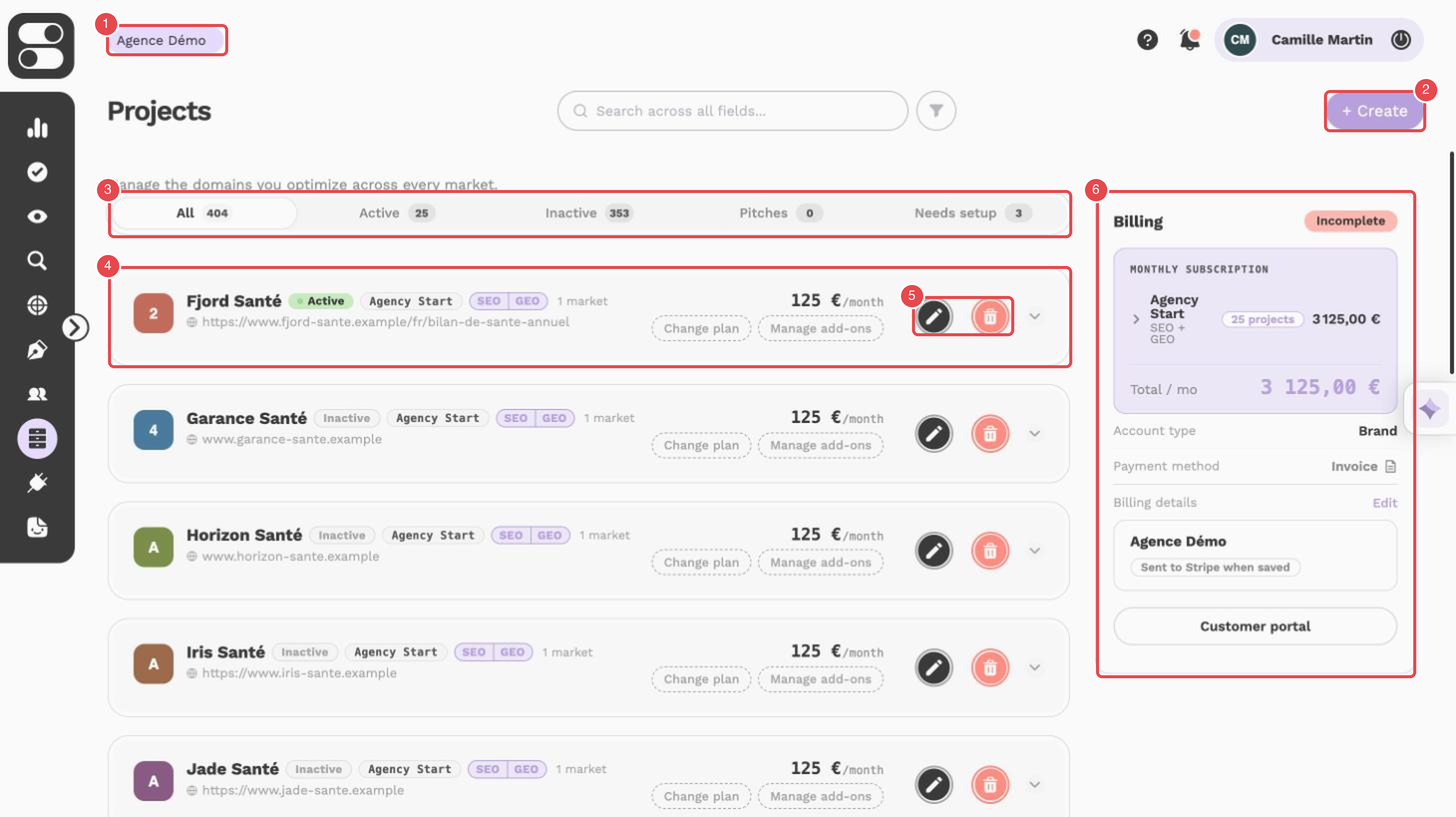
What the numbers show:
- Business account selector — the business account whose projects are listed.
- + Create — starts the creation of a project (described below).
- Status tabs — All, Active, Inactive, Pitches and Needs setup, each with its number of projects.
- Project card — name, status, plan, SEO / GEO, number of markets, domain and monthly price.
- Project actions — the Edit project (pencil) and Delete project (trash) icons of the project card.
- Billing block — monthly subscription, account type, payment method, billing details and Customer portal.
How your workspace is organised
- A business account is your company (or your agency). It holds the billing details and the projects.
- A project is a website you optimise. Plans and add-ons are attached to a project.
- A market is a project tracked in a given country and language (for example FR-fr or BE-nl), optionally for a specific city. Keywords, prompts, competitors, crawls and tasks are managed per market.
Find a project
The project list can be narrowed with the tabs above it: All, Active, Inactive, Pitches and Needs setup. Each tab shows how many projects it contains. Use the search and filter bar at the top of the page to filter by Name, URL, Created at, Plan or Market status.
Agency accounts also get an Export Excel button that exports the list of projects.
Project cards
Each project is shown as a card. The header shows:
- the logo, name and website of the project;
- a status badge: Active, Inactive, Trial (with its end date) or Pitch;
- the plan name and the plan type (SEO, GEO or SEO + GEO);
- the number of markets and the monthly or yearly price of the plan;
- Change plan and Manage add-ons, to change what the project includes (see Billing & subscription);
- the action icons, from left to right:
- the pencil, Edit project: edit the project name, brand name and website URL (all roles);
- the trash icon, Delete project: business admins of the account. After confirmation, the project is hidden and its markets are paused; it is not erased from the database.
Click the card to expand it and see:
- Markets — one chip per market (for example FR-fr). Paused markets are marked paused. Click a chip to edit the market, or + to add a market.
- Usage gauges — what each market uses compared with the project's limits: keywords, competitors, prompts and crawled pages.
- Project add-ons — the add-ons active on the project.
- Show SEO / GEO report — opens the SEO and GEO report of a market of the project.
[!NOTE] A project without a plan shows No plan assigned. Click Choose a plan to activate it and unlock its data.
Create a project
Start the wizard
Click + Create at the top of the page.
Set up the project
Enter the Project name, Brand name and Website URL. Agency accounts also choose the Project type: Client for a regular client, or Pitch for a one-off prospect.
Add markets
For each market, choose the Country and Language, check the Specific URL (the page where the crawl starts) and the Conditional URL (only URLs containing this value are crawled), then click Add market.
Choose a plan
Pick a plan for the project, or click Skip for now to do it later. Pitch projects do not need a plan.
Edit a market
Click a market chip to open Edit market. You can change:
| Setting | What it does |
|---|---|
| Market paused | Pauses or reactivates data collection for the market. |
| Country, City, Language | Where and in which language rankings are tracked. Without a city, the capital of the country is used. |
| Reco language | The language of the AI recommendations (French or English). |
| Conditional URL / Specific URL | Which pages are crawled, and where the crawl starts. |
| Manage auto generation | Which types of recommendations are generated automatically: On Page, GEO, Technical, New Content, Backlinks, UX. |
| Competitors | The competitors tracked for the market. The top 5 active competitors are highlighted and used by default. Add a competitor by its URL, drag one out to deactivate it, or restore a deleted one. |
Click Save changes to apply your changes.
[!WARNING] A market can only be paused from a given date, shown in the window. Reactivating a paused market commits it for at least 30 days.
Billing
The Billing block on the right side of the page summarises your subscriptions per project, your payment method and your billing details. See Billing & subscription.
Agency accounts also see a Stats block under the billing, with the number of pitches this month, projects, markets, keywords and prompts, and the markets per plan when available.