docs.semactic › Semactic Features
Log in
Semactic offers four ways to sign in: email and password, Google, Microsoft, or a Magic Link sent to your inbox. This page explains each method, how to reset your password and how to create an account.
Go to https://app3.semactic.com/login to open the sign-in page.
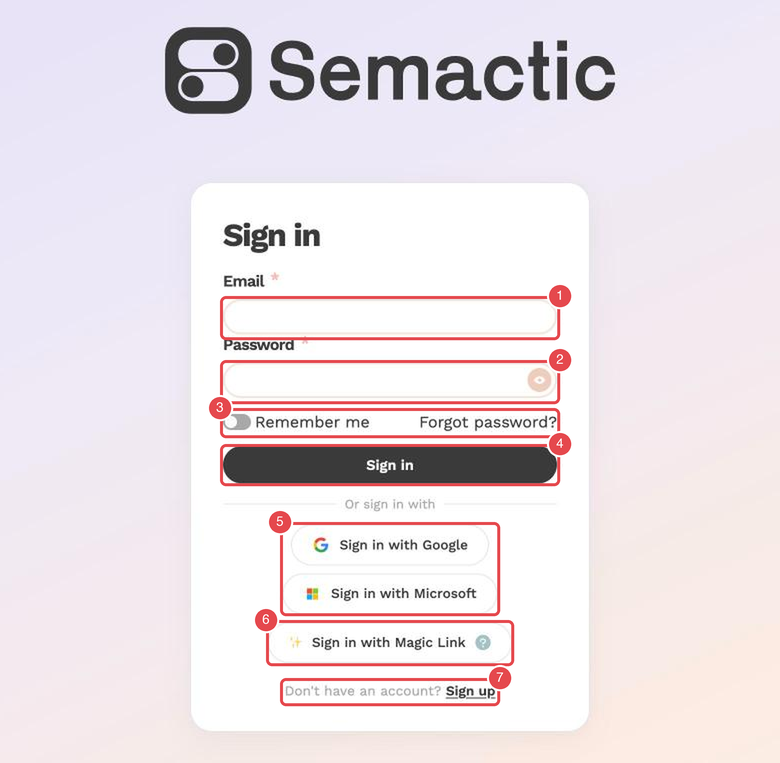
What the numbers show:
- Email — the email address of your Semactic account.
- Password — the eye icon shows what you typed.
- Remember me and Forgot password? — stay signed in on this browser, or reset your password.
- Sign in — signs you in with your email and password.
- Sign in with Google and Sign in with Microsoft — sign in with your Google or Microsoft account.
- Sign in with Magic Link — receive a sign-in link by email, without a password.
- Sign up — create an account.
Sign in with your email and password
Enter your credentials
Type the Email of your Semactic account and your Password. Click the eye icon in the password field to show what you typed.
Stay signed in (optional)
Turn on Remember me to stay signed in for 15 days on this browser. Without it, your session lasts 1 day.
Sign in
Click Sign in.
If you are asked to verify your email address, enter the 6-digit code you received by email and click Verify. Use Resend code if it has expired.
Sign in with Google, Microsoft or a Magic Link
Under Or sign in with, choose:
- Sign in with Google — use your Google or Google Workspace account.
- Sign in with Microsoft — use your Microsoft account (Microsoft 365, Outlook).
- Sign in with Magic Link — receive a one-time sign-in link by email, without a password.
To use a Magic Link, enter your email address and click ✨ Send Magic Link. Open the email and click the link: it expires after 20 minutes and can only be used once.
[!TIP] If your company uses Google Workspace or Microsoft 365, signing in with Google or Microsoft saves you from managing a separate password. Use the same email address as the one your Semactic account was created with.
Reset your password
Request a reset link
On the sign-in page, click Forgot password?, enter your email address and click Send reset link.
Open the email
If an account exists for this address, you receive an email with a reset link. Check your spam folder if you don't see it.
Choose a new password
Enter your New password, confirm it in Confirm new password, then click Update password. You can then sign in with it.
[!NOTE] When a team member invites you to Semactic, the invitation email leads you to the same screen to create your password.
Create an account
Click Sign up under Don't have an account?. Enter your Work email and click Send magic link, or use Sign up with Google or Sign up with Microsoft. You then set up your first project and market (see Setting up a market).
Log out
Click the logout icon next to your name, at the top right of the screen. On a small screen, open the ☰ menu and choose Log Out.