docs.semactic › Semactic Features
Help, guided tours & reporting a bug
Semactic has a built-in help centre that you can open from any page: click the floating Help & Assistant button at the edge of the screen, or the ? button in the top bar. The ? button opens the help centre directly on the FAQ tab, with the questions about the page you are on.
The help centre tabs
| Tab | What it is for |
|---|---|
| AI Chat | Ask questions in plain language. The assistant answers from the Semactic documentation and cites its sources. Available when the assistant is enabled for your account. |
| Guides | Interactive tours that walk you through a feature directly in the interface. |
| FAQ | Short answers to common questions about the current page. |
| Bugs | Report a problem to the Semactic team and follow your reports. |
| Docs | Opens the full documentation, docs.semactic.com, in a new tab. |
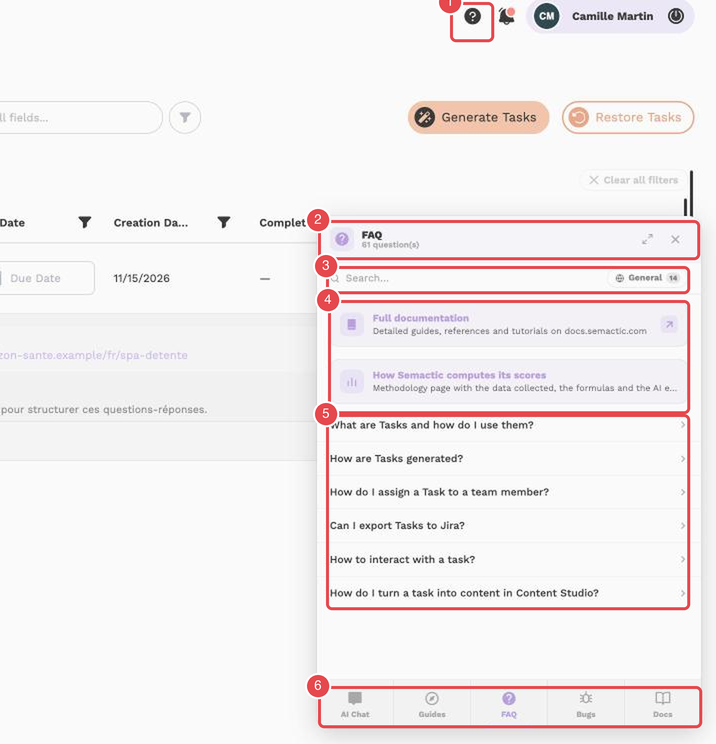
What the numbers show:
- Open page help — the ? button in the top bar opens the help centre on the FAQ tab.
- Panel header — the name of the tab, the number of questions, and the buttons to enlarge or close the panel.
- Search and page filter — search the questions; the filter next to the search box (here General) switches between the pages.
- Shortcuts — Full documentation and How Semactic computes its scores, the methodology page.
- Frequently asked questions — the questions about the page you are on; click one to read the answer.
- Tab bar — AI Chat, Guides, FAQ, Bugs and Docs. AI Chat is shown only when the assistant is enabled for your account.
Guided tours
The Guides tab lists the tours for the page you are on (This page) and all the others (All pages). A tour highlights each control in turn and explains what it does, which is useful when you discover a section or when a feature has changed.
Click Start this guide to begin. You can stop at any time, then Resume where you left off or Relaunch this guide from the beginning.
Report a bug
Open the Bugs tab
Open the help centre, go to the Bugs tab, then New report.
Add screenshots or videos
Attaching evidence is optional but strongly recommended. You can add up to 8 screenshots and 4 videos to one report:
- Capture screen — take a screenshot, then crop and annotate it (arrows, shapes, text, numbered badges). Use Privacy zone to blur or hide sensitive data.
- Record a video — record the screen for up to 60 seconds.
- Upload an image or video — attach a file you already have.
Describe the problem
Give a short Title and a Description: what happened, what you expected, and how to reproduce it. Choose the Severity (Critical, High, Medium or Low) and check the Category, which is pre-filled from the page you were on.
Send
Click Send report. Technical context (browser, screen size, current page, recent errors) is attached automatically.
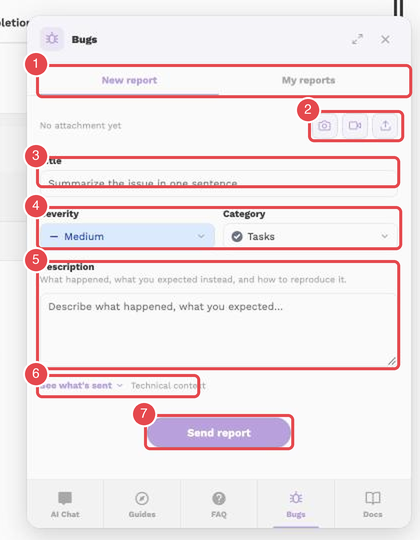
What the numbers show:
- New report / My reports — the two views of the Bugs tab: write a report, or follow your previous reports.
- Attachments — add a screenshot, record a video, or upload an image or a video.
- Title — a one-sentence summary of the problem.
- Severity and Category — Severity is Medium by default; Category is pre-filled with the page you are on.
- Description — what happened, what you expected instead, and how to reproduce it.
- See what's sent — shows the technical context attached to the report.
- Send report — sends the report to the Semactic team.
Your reports are listed under My reports, in the same tab. Open a report to see its status and to exchange messages with the support team; a badge shows when support has replied.
[!TIP] A short screen recording of the problem is often worth more than a long description. Use the annotation tools to point at exactly what is wrong.
[!NOTE] For billing questions or changes to your account, contact your account manager directly rather than reporting a bug.