docs.semactic › Semactic Features
Market Explorer
Market Explorer helps you discover what to track next: new keywords for your SEO, and new prompts (questions people ask AI assistants such as ChatGPT) for your GEO. Open it from Market Explorer in the left sidebar. It shows the Keyword Finder or the Prompt Finder depending on whether SEO or GEO is selected in the top bar.
Both tools use credits. The remaining balance is shown next to the button that starts the search.
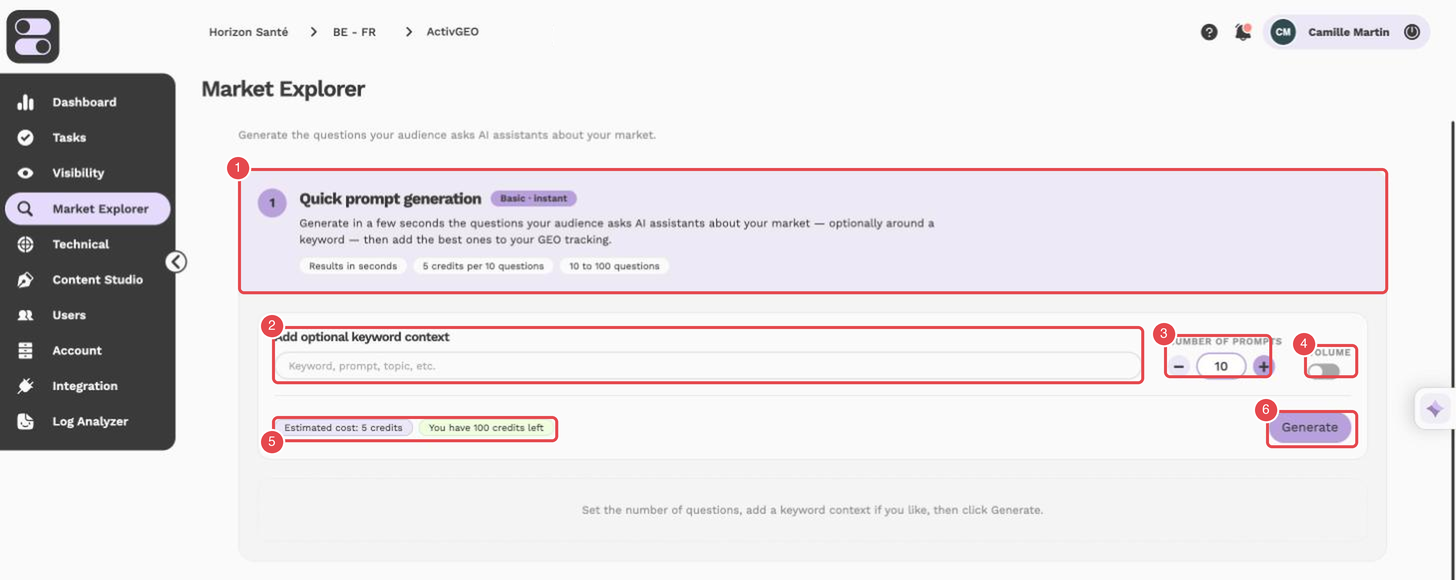
What the numbers show (ActivGEO view, Quick prompt generation):
- Basic · instant banner — what the tool does and what it costs: 5 credits per 10 questions, from 10 to 100 questions.
- Optional keyword context — a keyword, prompt or topic to focus the questions.
- Number of prompts — use − and + to change it.
- Volume — the switch adds the search volume of each question.
- Estimated cost and credits left — the cost of the generation and your remaining balance.
- Generate — starts the generation.
Prompt Finder
Quick prompt generation creates, in a few seconds, the questions your audience asks AI assistants about your market, optionally around a keyword.
Set up the generation
Optionally type a keyword, prompt or topic in Add optional keyword context to focus the questions; leave it empty to use your market as a whole. Choose the Number of prompts (10 to 100, in steps of 10) and turn on Volume if you want the search volume of each question.
Check the cost and generate
The Estimated cost updates with your settings: 5 credits per 10 prompts, plus 5 credits per 10 prompts with Volume on. Click Generate.
Add the best questions to your tracking
In Generated questions, select the questions to keep and click Add prompt (N). Choose at least one label, then confirm: the prompts are added to your GEO tracking.
Keyword Finder
Quick keyword search gives you keyword ideas with their volume, CPC and competition.
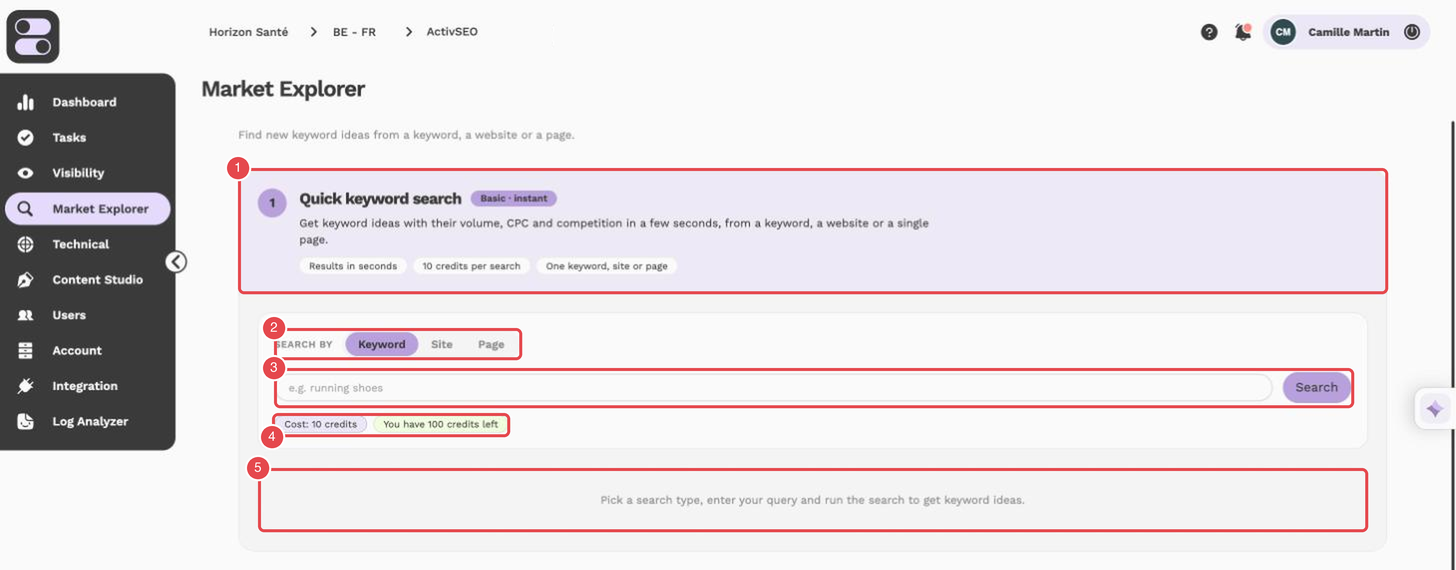
What the numbers show (ActivSEO view, Quick keyword search):
- Basic · instant banner — what the tool does and what it costs: 10 credits per search, for one keyword, site or page.
- Search by — choose Keyword, Site or Page.
- Search field and Search button — enter your query and start the search.
- Cost and credits left — the cost of the search and your remaining balance.
- Results area — the keyword ideas appear here once the search has run.
Choose what to search from
Under Search by, pick Keyword, Site or Page, then enter a keyword, a domain or a page URL.
Run the search
Click Search. Each search costs 10 credits.
Add keywords to your tracking
In Keyword suggestions, select the keywords you want and click Add to my keywords (N). Choose the labels to apply, then confirm.
The results also show Related keywords (terms Google associates with your query), Related searches and Related questions (People also ask), which are useful for content ideas.
[!NOTE] Credits are used as soon as you start a generation or a search, and are not refunded. Adding prompts or keywords to your tracking afterwards does not use credits, but counts towards the keyword and prompt limits of your plan.
[!TIP] Start with 10 prompts to test a topic. If the results are relevant, generate larger batches to build a full set of questions for your content strategy.