docs.semactic › MCP
Connect Semactic to ChatGPT
Connect the Semactic MCP server to ChatGPT in a few steps. Once connected, you query your SEO and GEO data from a ChatGPT conversation.
Before you start
- The MCP server requires the MCP add-on on your Semactic account.
- You need your Semactic API key: it is on the Semactic API card of the Integration page. See Semactic API and MCP server.
[!NOTE] Connecting a custom MCP server requires turning on Developer mode in ChatGPT. OpenAI flags it as an elevated risk: it allows unverified connectors and disables memory in the affected conversations. It may also be restricted by your plan or by the administrator of your ChatGPT workspace.
Step 1 — Open Settings
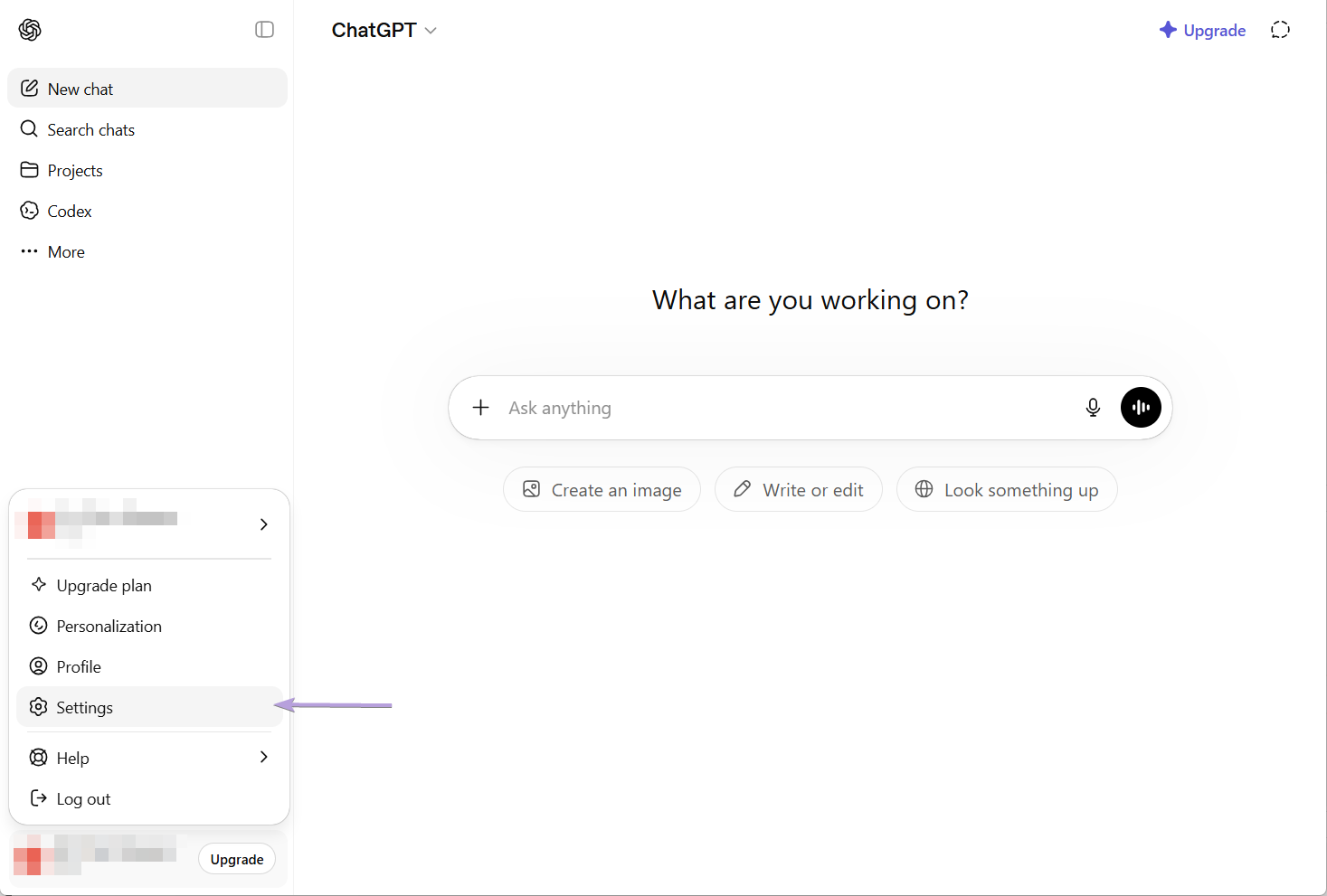
Click your avatar at the bottom left of ChatGPT, then click Settings.
Step 2 — Open the advanced app settings
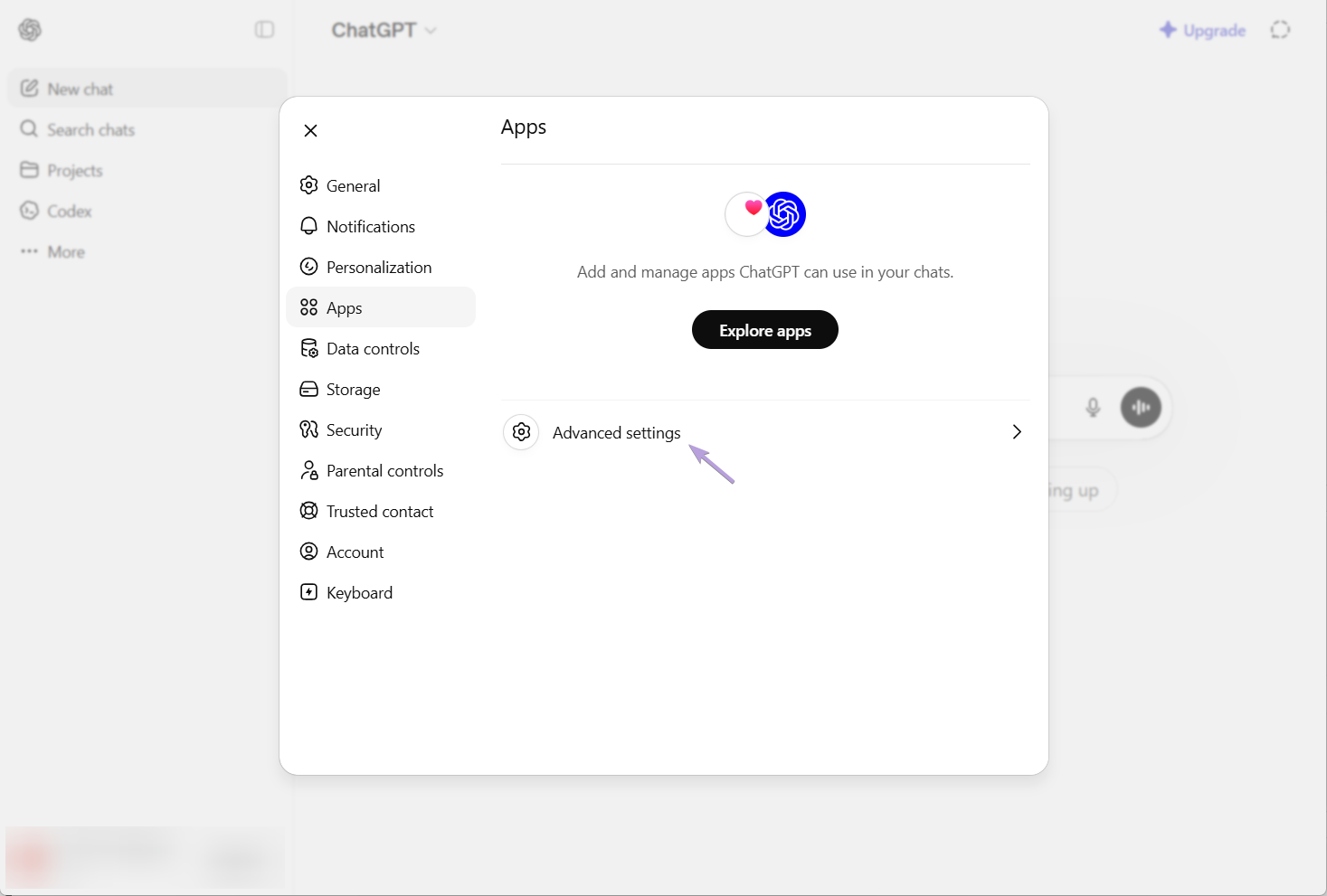
In Settings, select the Apps tab, then click Advanced settings.
Step 3 — Turn on developer mode
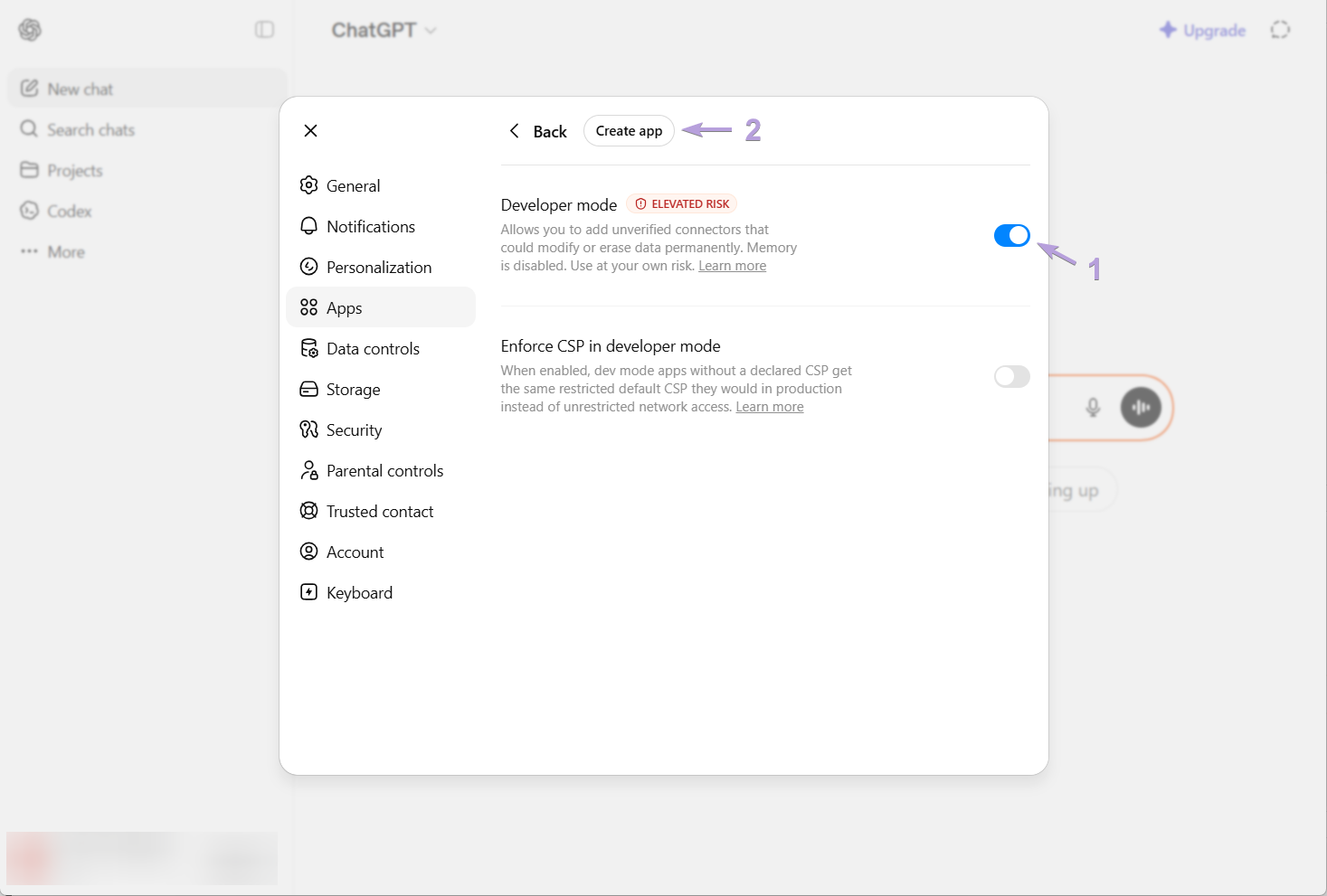
Turn on Developer mode (1), then click Create app (2).
Step 4 — Fill in the app
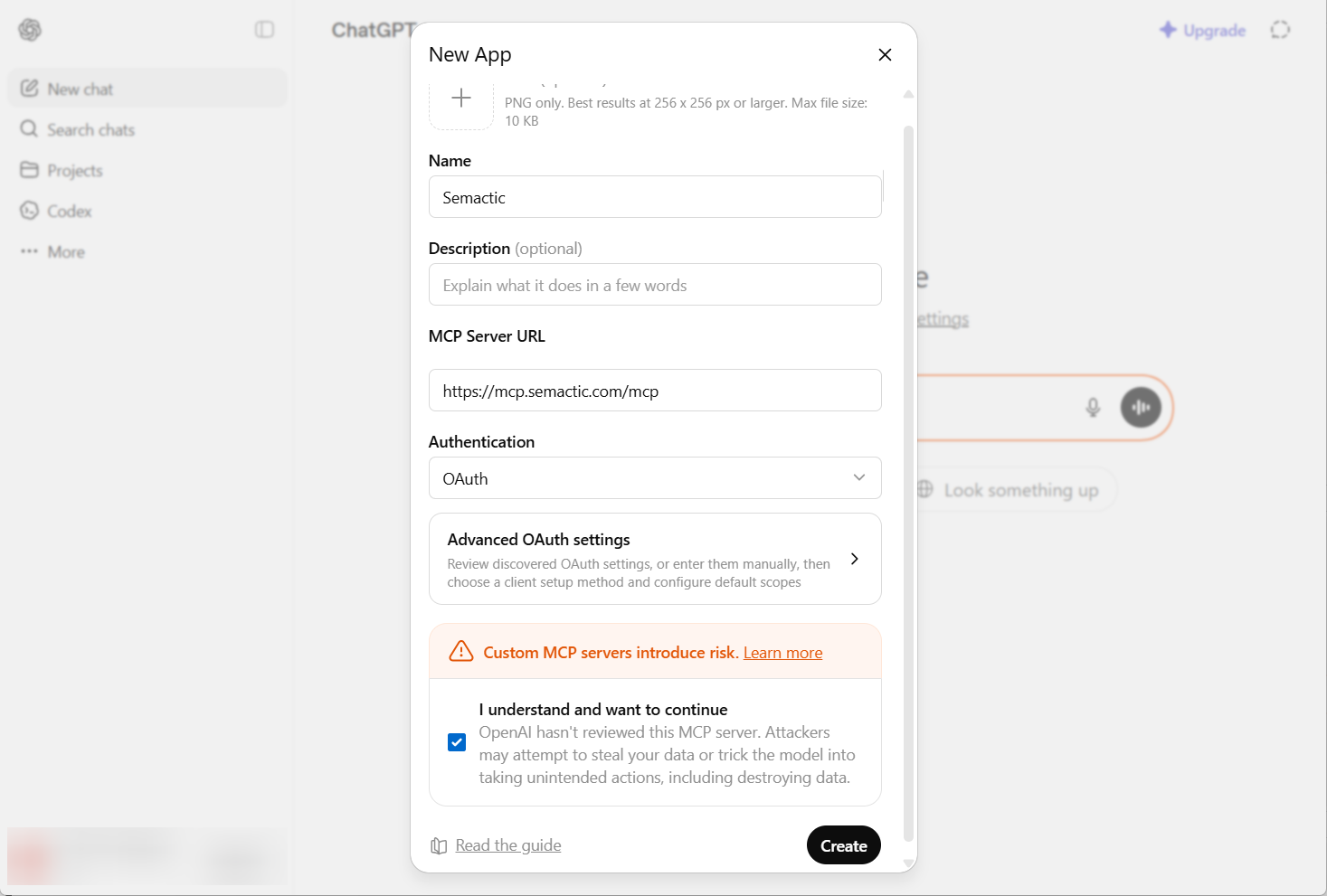
Enter Semactic as the name, paste the MCP server URL in the MCP Server URL field, set Authentication to OAuth, tick the risk acknowledgment box, then click Create.
https://mcp.semactic.com/mcp
Step 5 — Enter your API key and authorize
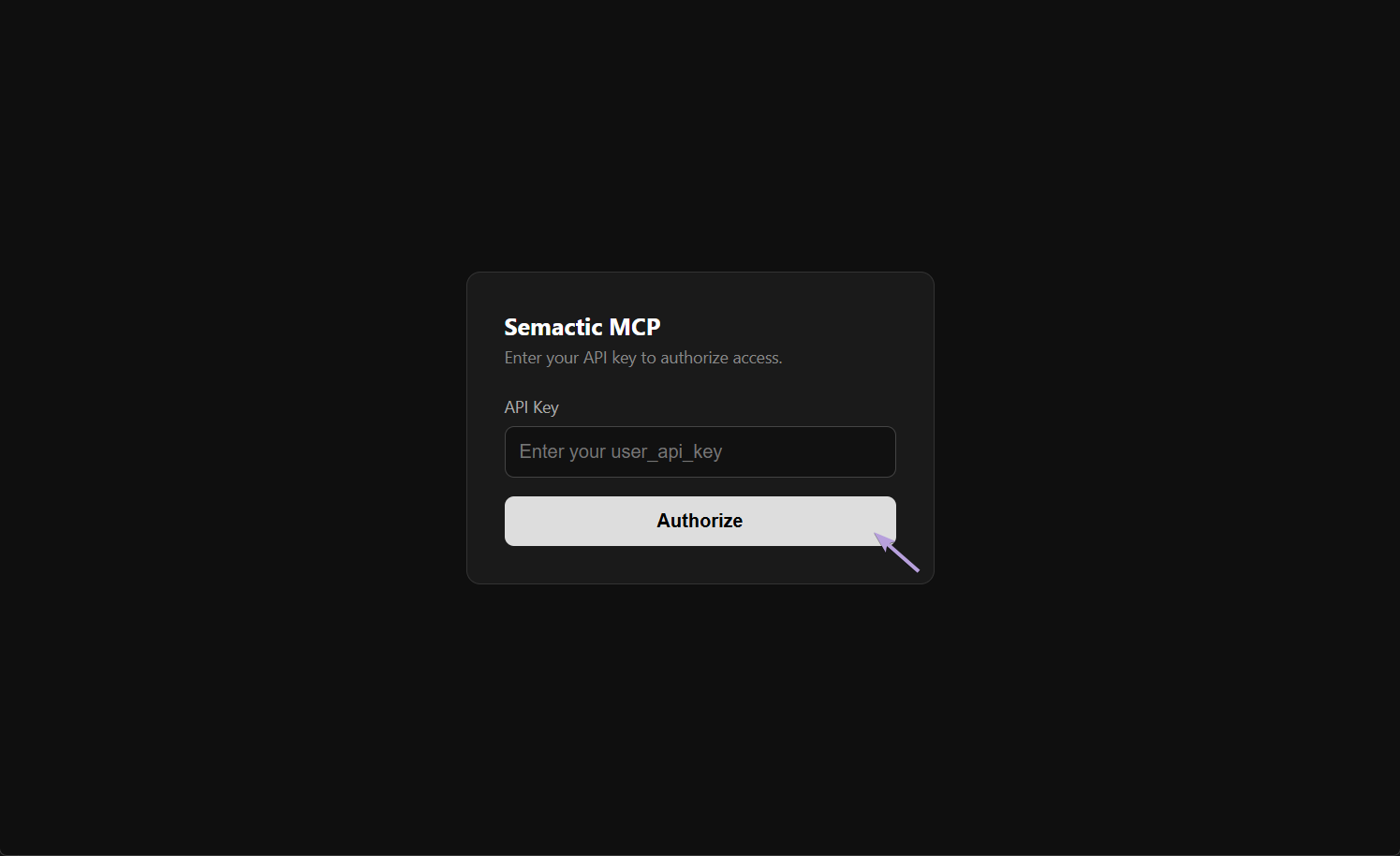
The Semactic MCP authorization page opens. Paste your API key in the API Key field and click Authorize.
Step 6 — Check the connection
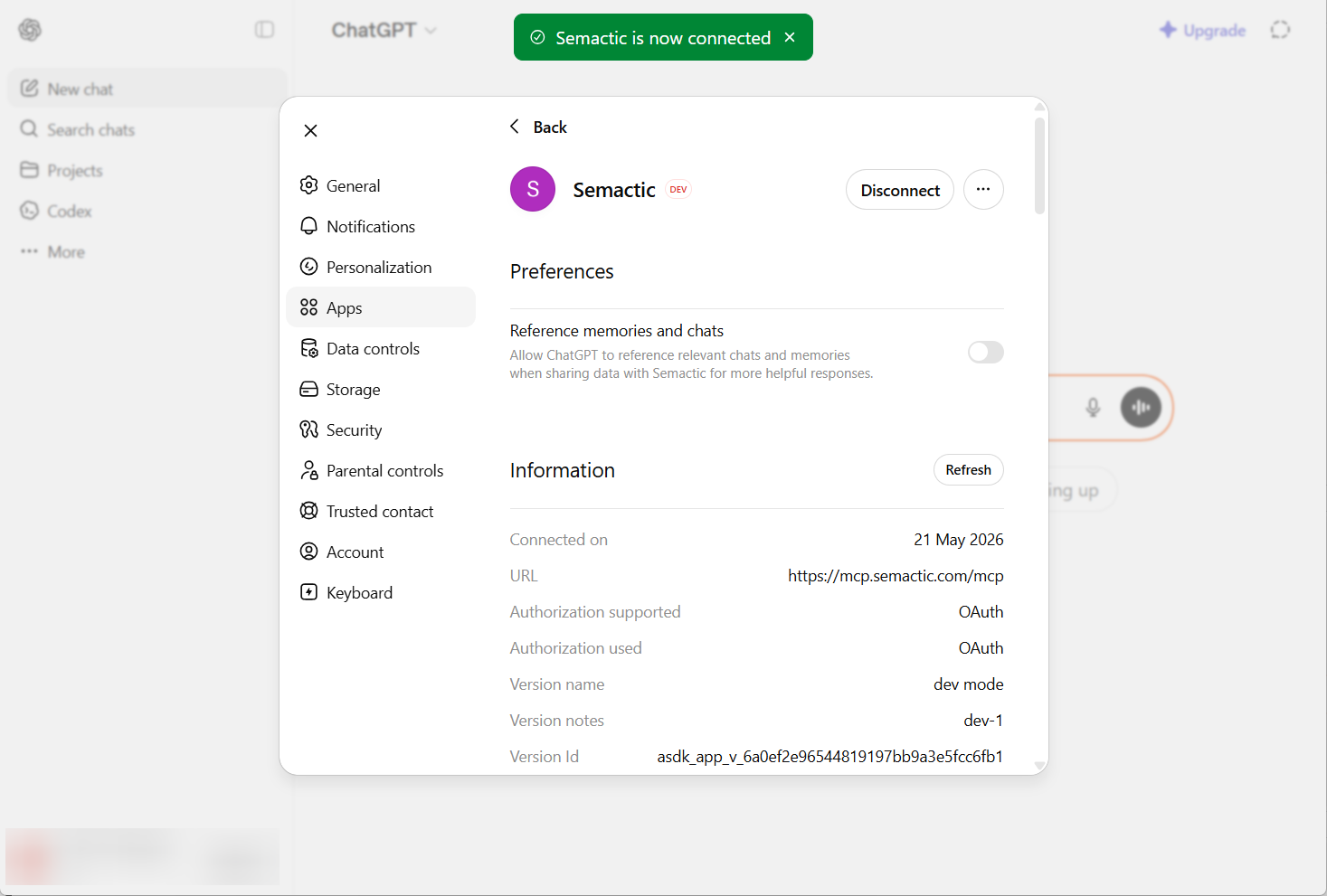
ChatGPT confirms the connection with a green notification. The app details show the server URL and the OAuth authorization method.
Step 7 — Use Semactic in a conversation
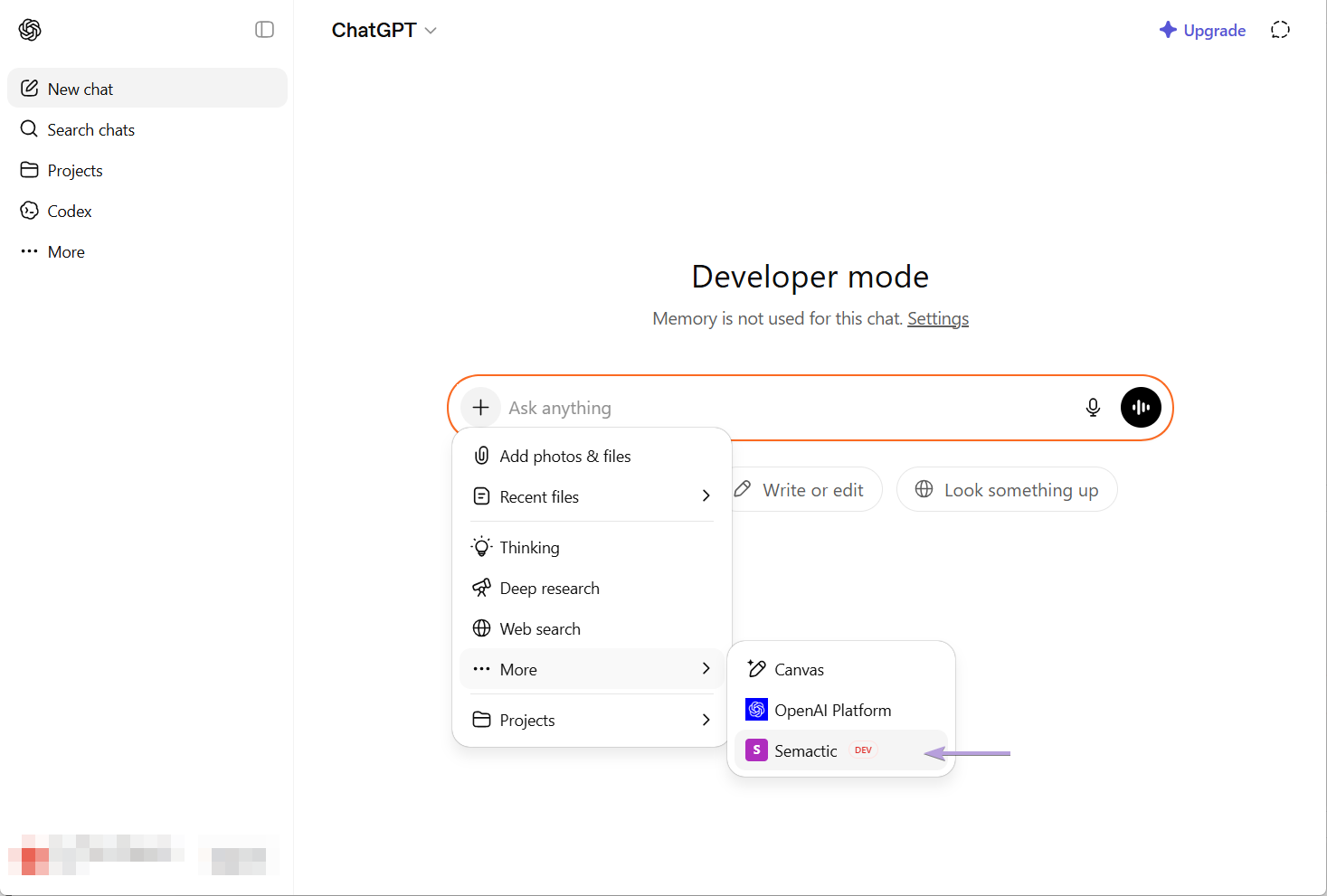
In a conversation, click the + button in the input area, then More. Select Semactic (shown with a DEV badge, because the app was created in developer mode) and ask your question about your SEO and GEO data.
Troubleshooting
| Problem | What to check |
|---|---|
| Create app is missing | Developer mode is off, or your ChatGPT plan or workspace does not allow it. Ask the workspace owner. |
| "Invalid API key." on the authorization page | Copy the key again from the Semactic API card. If the key was refreshed, the old one no longer works. |
| Semactic does not appear under More | Check that the connection succeeded in Settings > Apps, then start a new conversation. |
| Answers are about another market | Name the market, domain or country in your question. |
For an AI agent or a command-line MCP client, see Connect Semactic to an agent or another MCP client.