docs.semactic › Intégrations
Google Analytics 4
Connecting Google Analytics 4 lets Semactic fetch your website's traffic and conversions and show them in your dashboards. The connection is set per market: select the right project and market in the top bar before you start.
Connect your Google account
In Integration, on the Google Analytics 4 card, click Connect and sign in with the Google account that has access to your GA4 property.
Choose the property
In GA4 property, select the property of the website tracked by this market.
Set the tracking type
In Tracking type, choose what counts as a conversion:
- Conversion — then tick your goals in Select goals (for example a contact or demo request).
- Revenue or Transaction — for e-commerce websites.
Save
Click Save property.
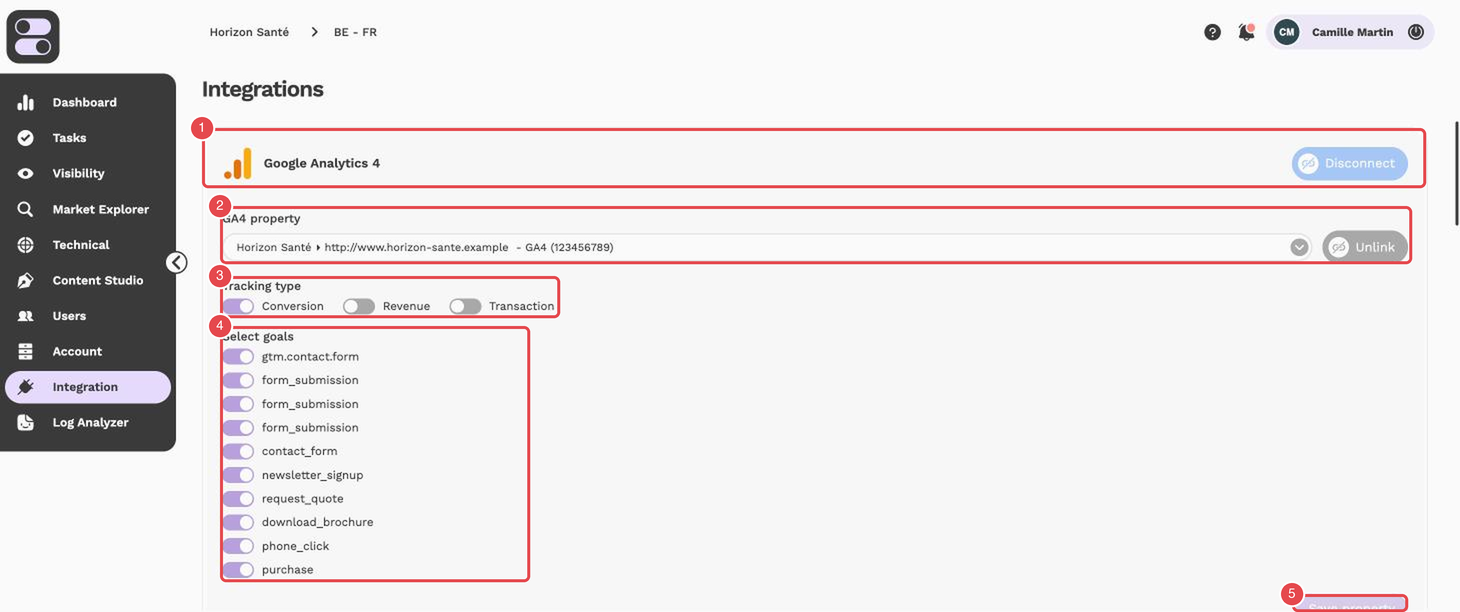
What the numbers show:
- Connector card — the Google Analytics 4 card and its Disconnect button.
- Linked property — the GA4 property linked to the market, and the Unlink button.
- Tracking type — Conversion, Revenue or Transaction.
- Select goals — the goals to track, with a switch for each.
- Save property — saves your choices.
[!NOTE] The goals offered come from your Google Analytics account. If a goal is missing, check that it is set up as a key event in GA4 first.
[!NOTE] For security reasons, Google regularly asks you to sign in again. When your Google session has expired, Semactic asks you to reconnect the account: click Connect again on the card.
Do you use Piwik PRO instead of Google Analytics? See Piwik PRO.